> ## Documentation Index
> Fetch the complete documentation index at: https://docs.matterai.so/llms.txt
> Use this file to discover all available pages before exploring further.
# Figma Integration
> Connect your Figma account to MatterAI
# MatterAI Figma Integration
Connect your Figma account to MatterAI to seamlessly search, fetch designs, and interact with all your Figma content directly within MatterAI.
Follow these steps to integrate MatterAI with your Figma Workspace:
## Step 1: Create a Personal Access Token (PAT) in Figma
1. Open Figma and click your profile avatar in the top left corner, then select **Settings** from the dropdown menu.
2. In the **Account** tab, scroll down to the **Personal access tokens** section.
3. Click the **Generate new token** button.
4. Give your token a name (such as `matterai-figma`) and an expiration date, then click **Generate token**.
5. In the **Scopes** section, grant the required permissions for MatterAI to access your Figma files and design data.
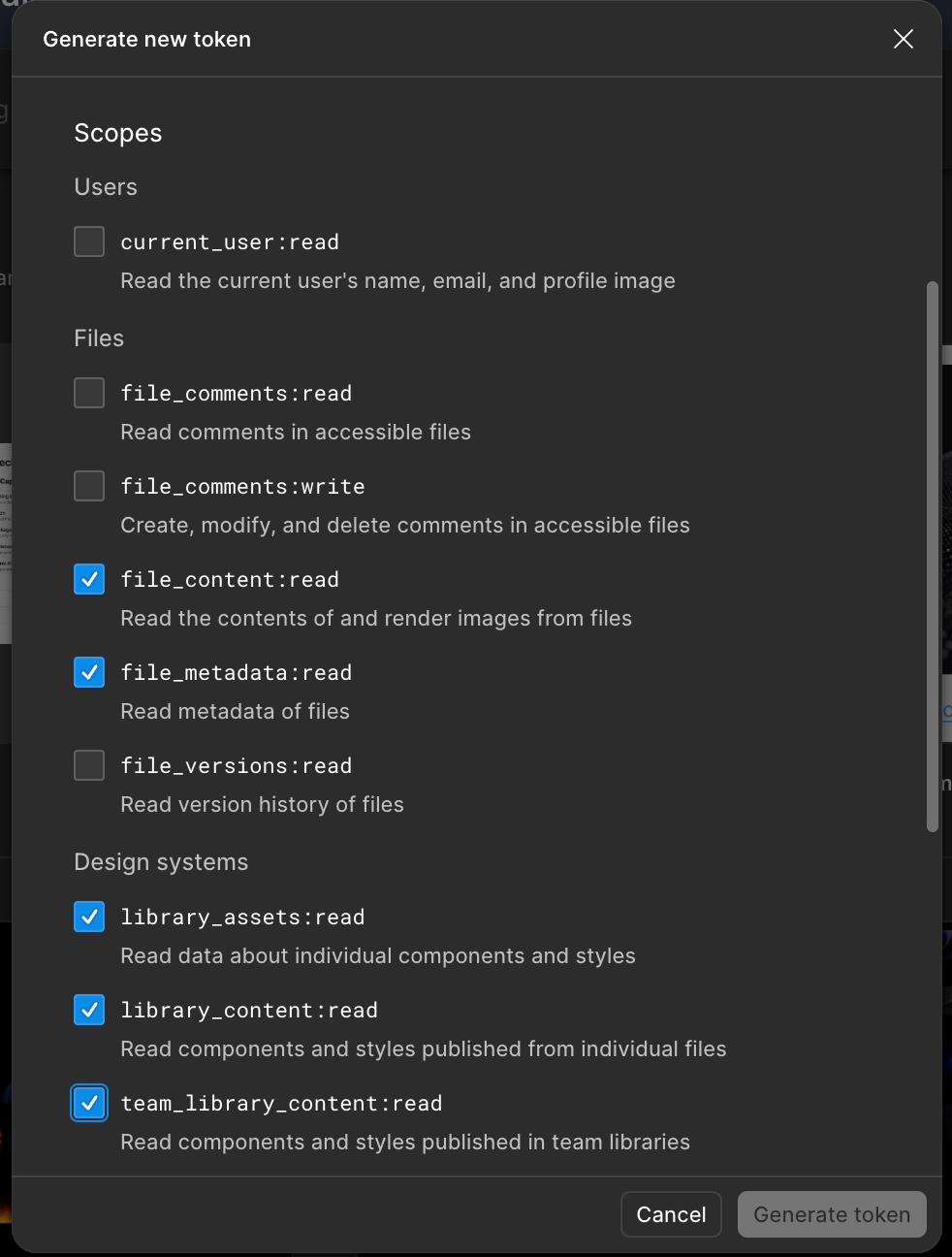 6. Copy the generated personal access token. **Save it somewhere safe**, as you won't be able to retrieve it again once you close the dialog.
## Step 2: Connect to MatterAI
1. Visit the MatterAI web app [https://app.matterai.so/connectors](https://app.matterai.so/connectors) and navigate to **Connectors** on the left menu.
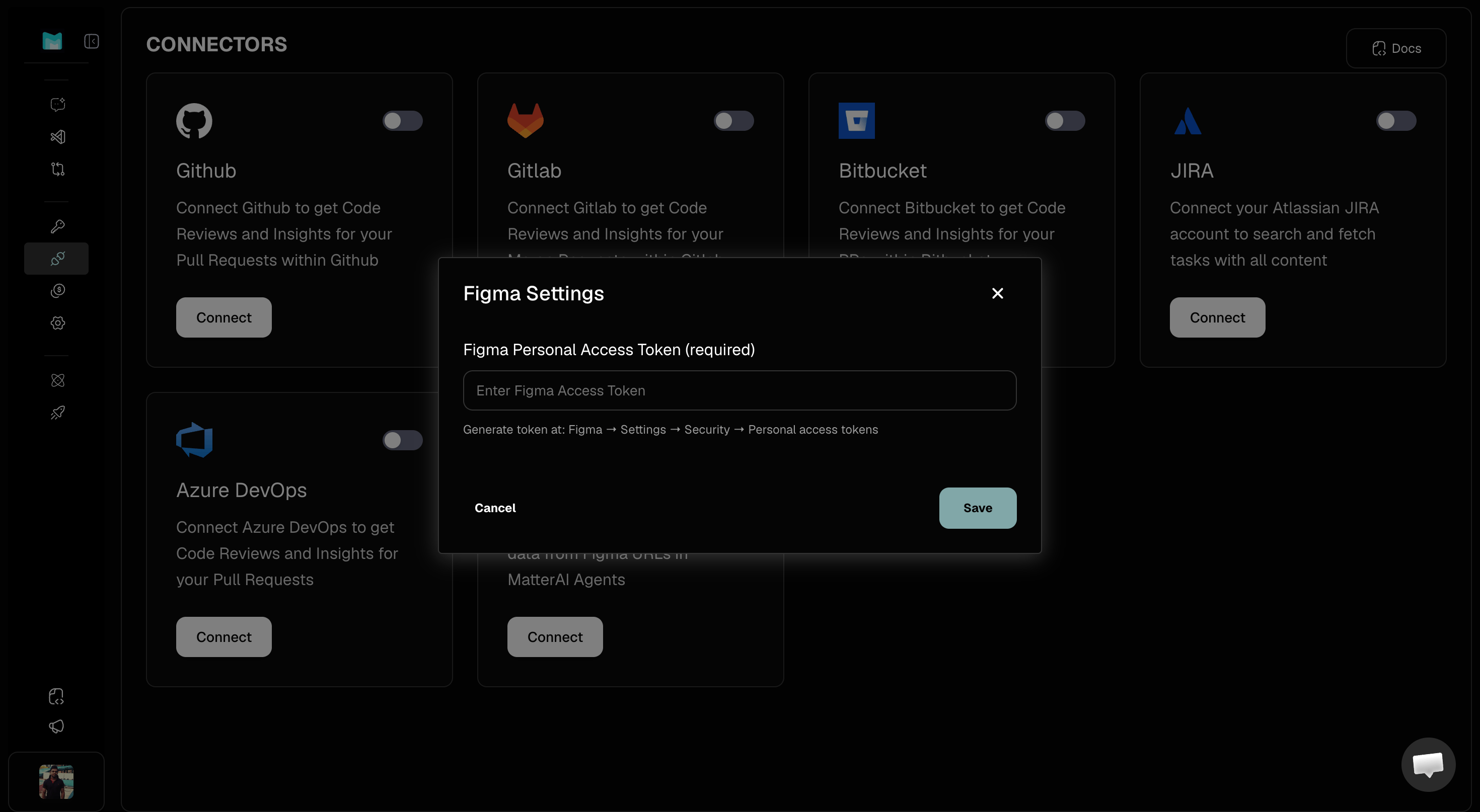
2. Under the **Figma** connector card, click the **Connect** button.
3. In the Figma Settings modal, paste the **Figma Personal Access Token** you copied during the previous step into the token field.
4. Click **Save** to complete the integration.
6. Copy the generated personal access token. **Save it somewhere safe**, as you won't be able to retrieve it again once you close the dialog.
## Step 2: Connect to MatterAI
1. Visit the MatterAI web app [https://app.matterai.so/connectors](https://app.matterai.so/connectors) and navigate to **Connectors** on the left menu.
2. Under the **Figma** connector card, click the **Connect** button.
3. In the Figma Settings modal, paste the **Figma Personal Access Token** you copied during the previous step into the token field.
4. Click **Save** to complete the integration.
 You are now successfully connected! MatterAI can now interact with your Figma workspace.