> ## Documentation Index
> Fetch the complete documentation index at: https://docs.matterai.so/llms.txt
> Use this file to discover all available pages before exploring further.
# Jira Integration
> Connect your Atlassian Jira account to MatterAI
# MatterAI Jira Integration
Connect your Atlassian Jira account to MatterAI to seamlessly search, fetch tasks, and interact with all your Jira content directly within MatterAI.
Follow these steps to integrate MatterAI with your Jira Workspace:
## Step 1: Create a Service Account
1. Go to your **Atlassian Administration** dashboard (e.g., `admin.atlassian.com`).
2. Navigate to **Directory** > **Service accounts** from the left sidebar.
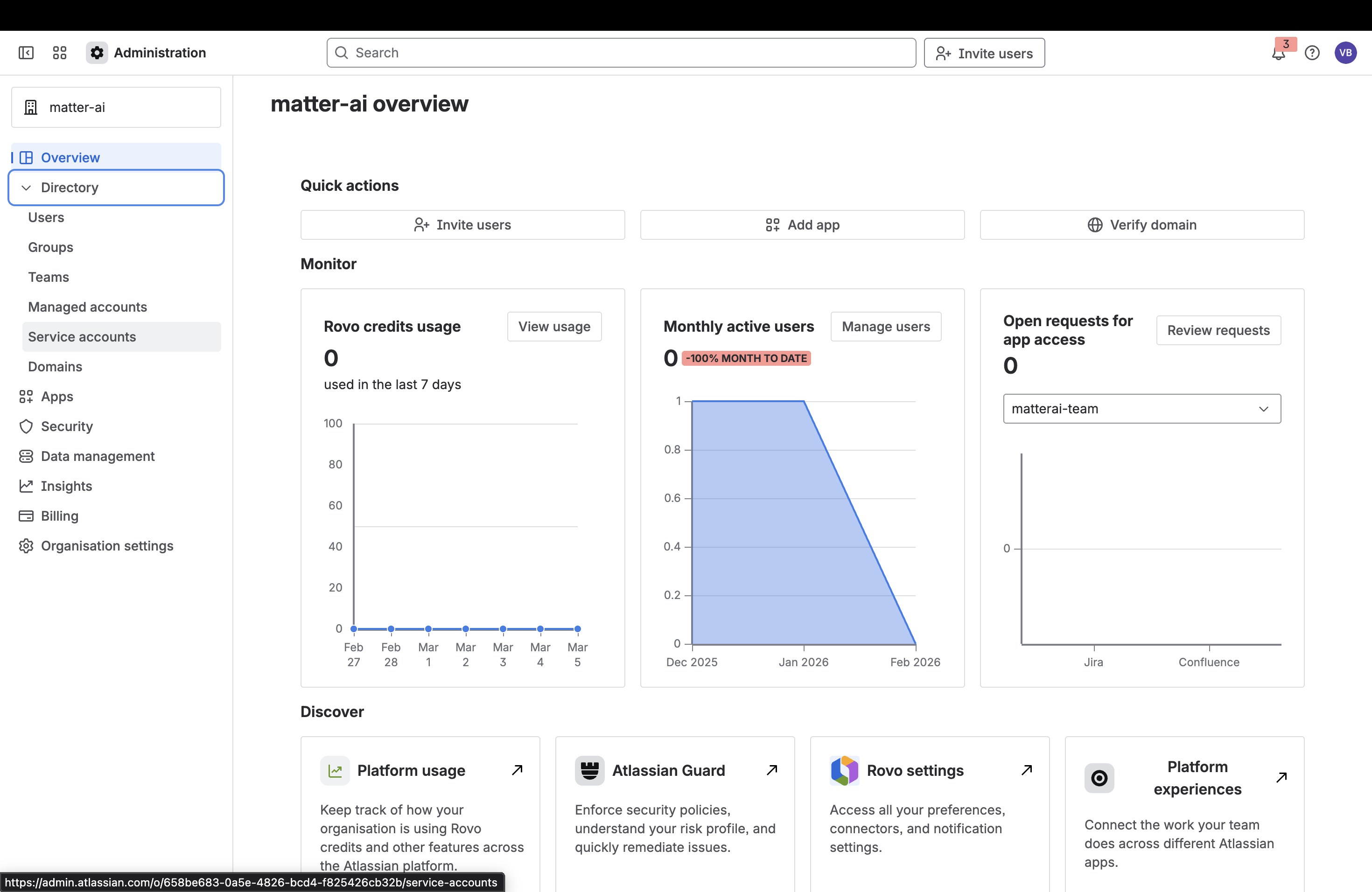 3. Click the **Create a service account** button in the top right corner.
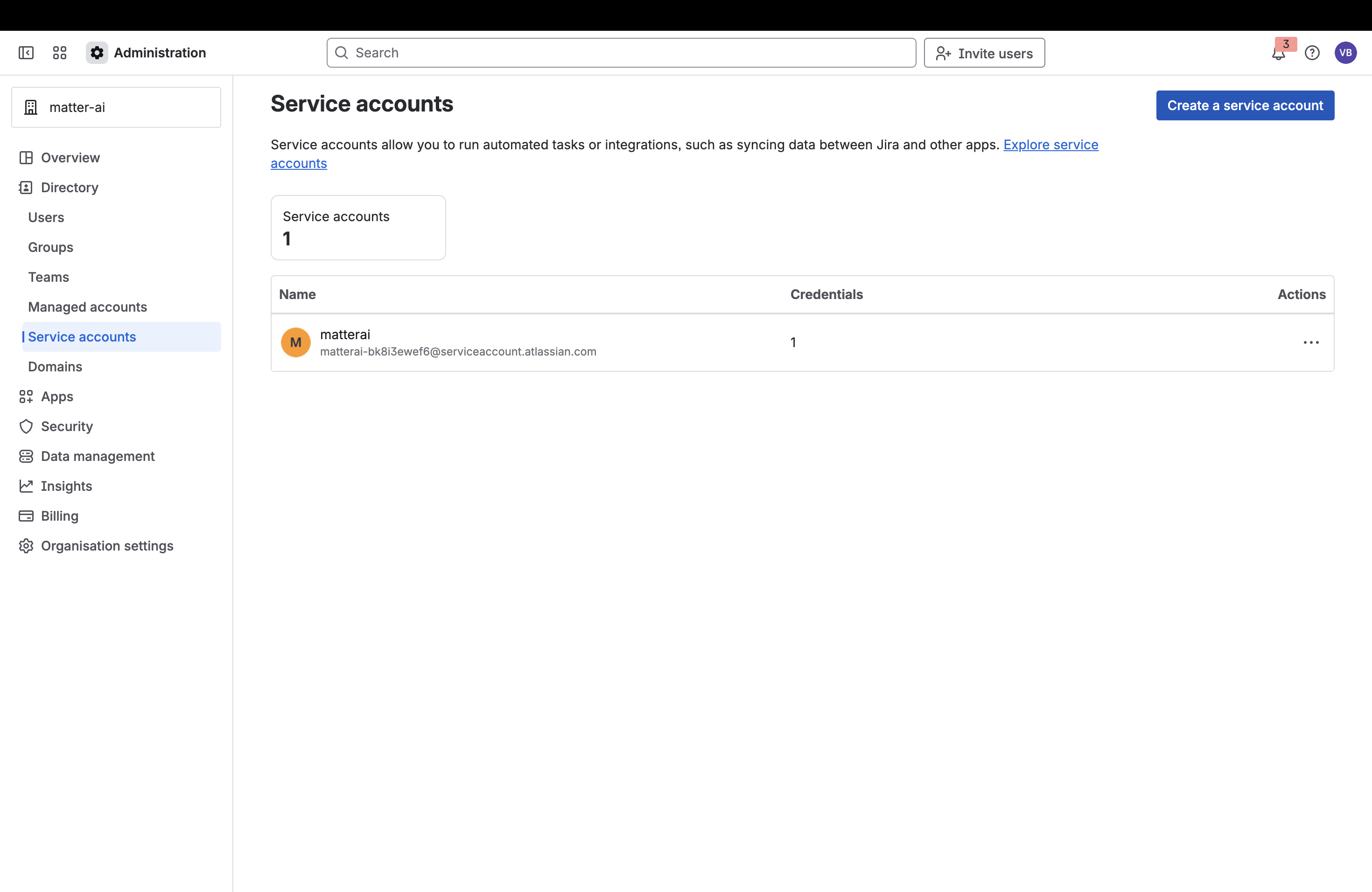 4. Provide a name (e.g., `matterai-jira`) and description for your service account, then click **Next**.
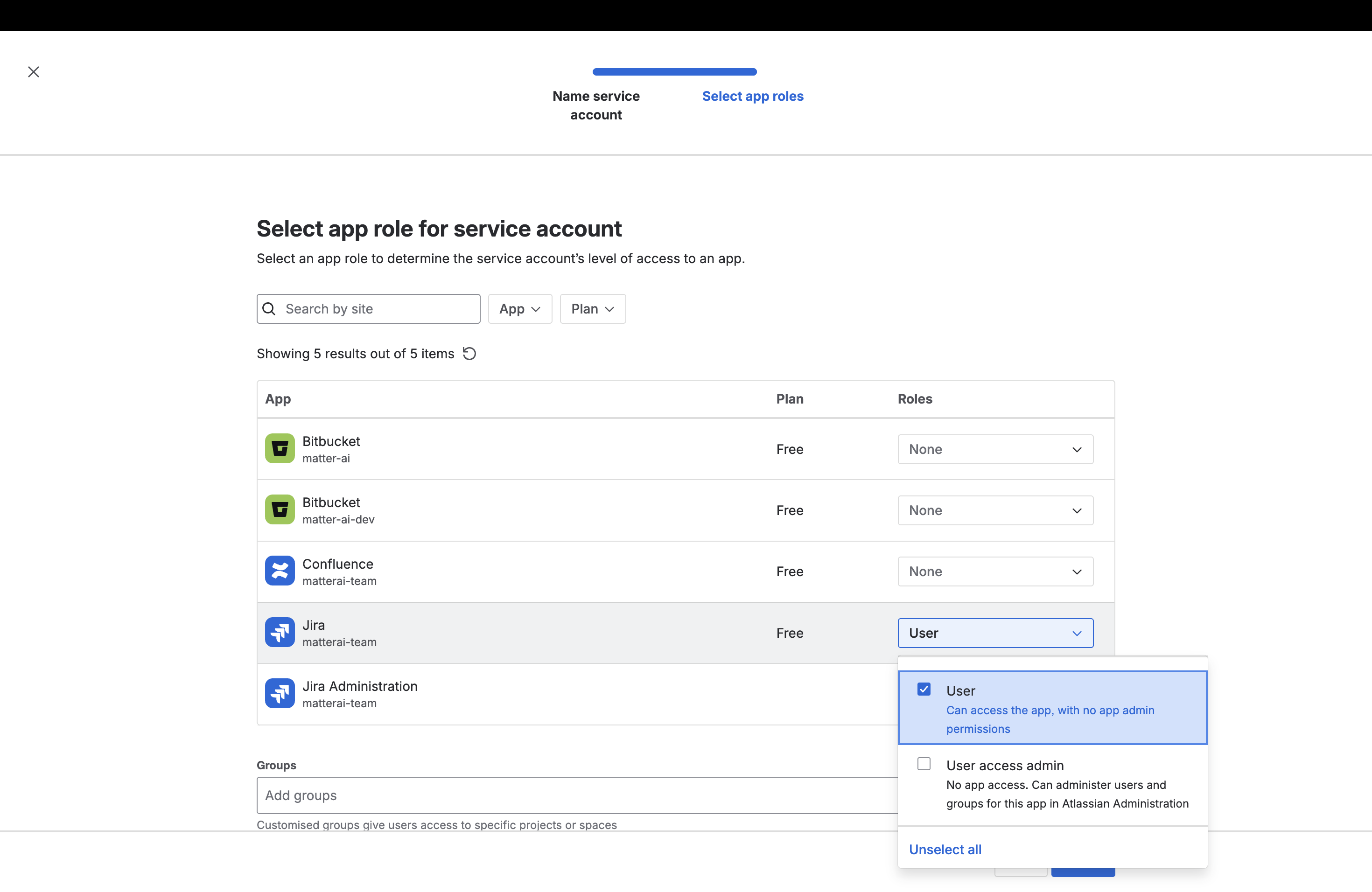
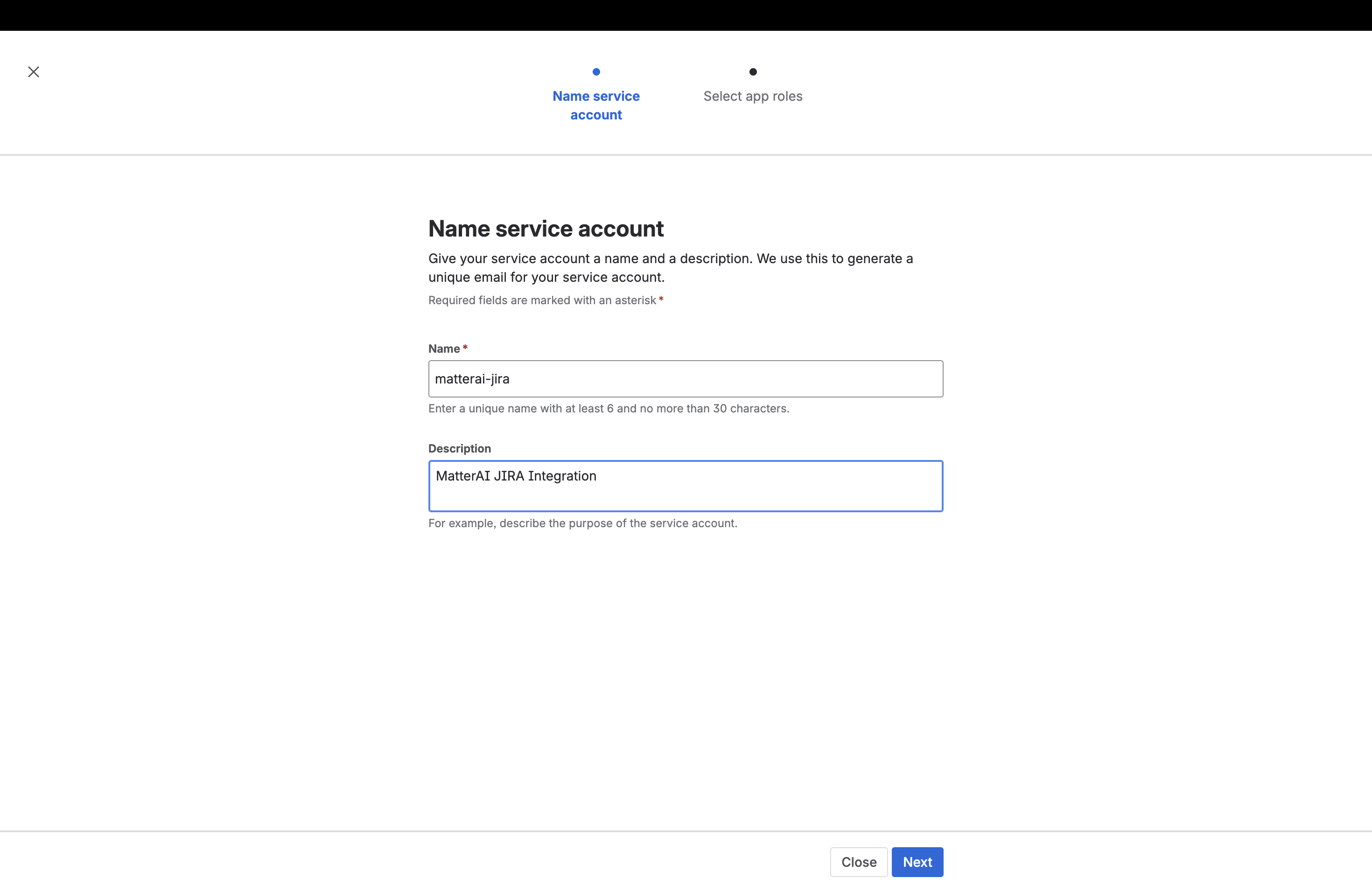 5. In the **Select app roles** step, find **Jira** from the list of apps and assign it the **User** role.
 ## Step 2: Generate an API Token
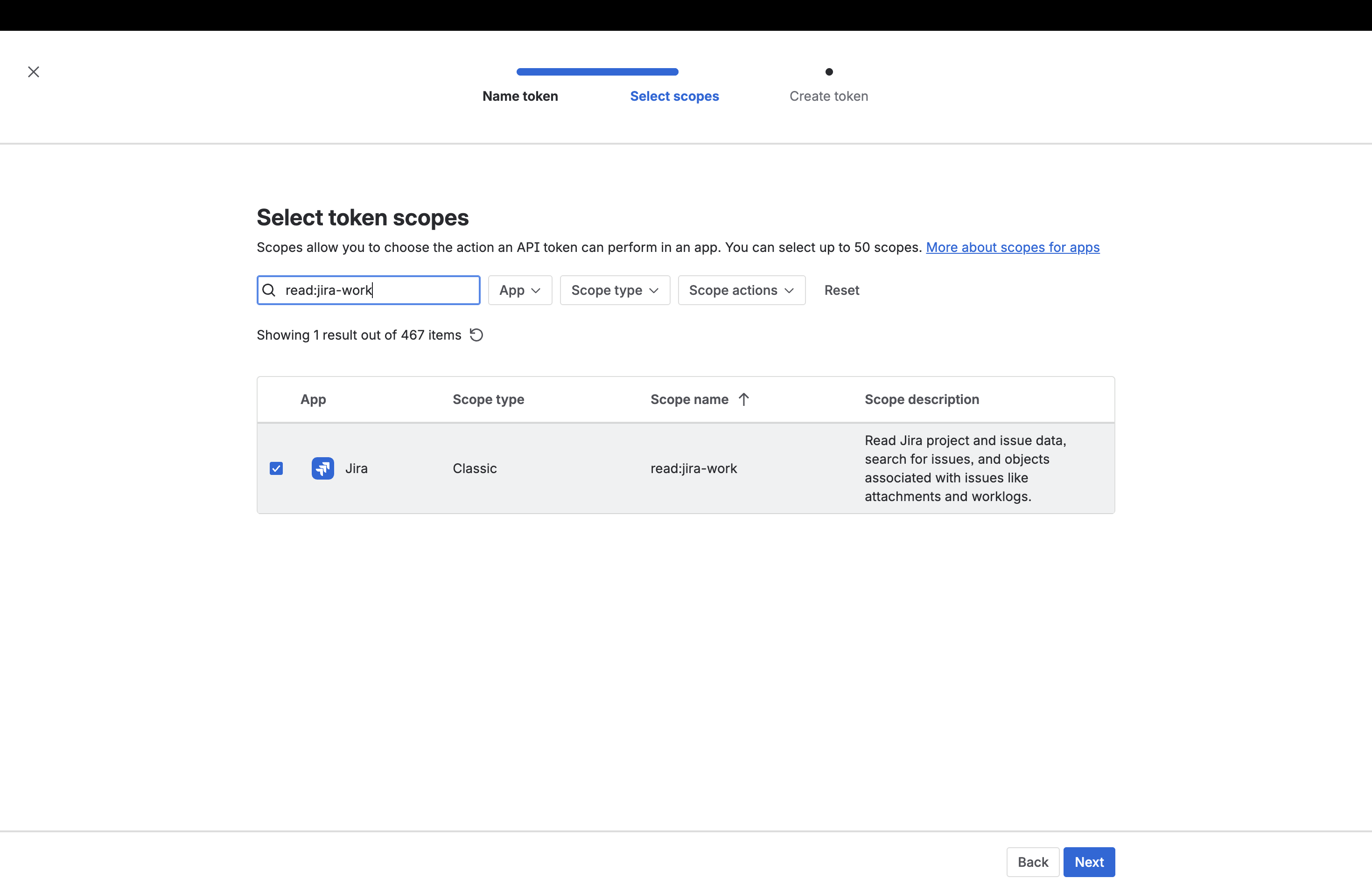
1. After the service account is successfully created, click on the **Create credentials** button on the service account page.
## Step 2: Generate an API Token
1. After the service account is successfully created, click on the **Create credentials** button on the service account page.
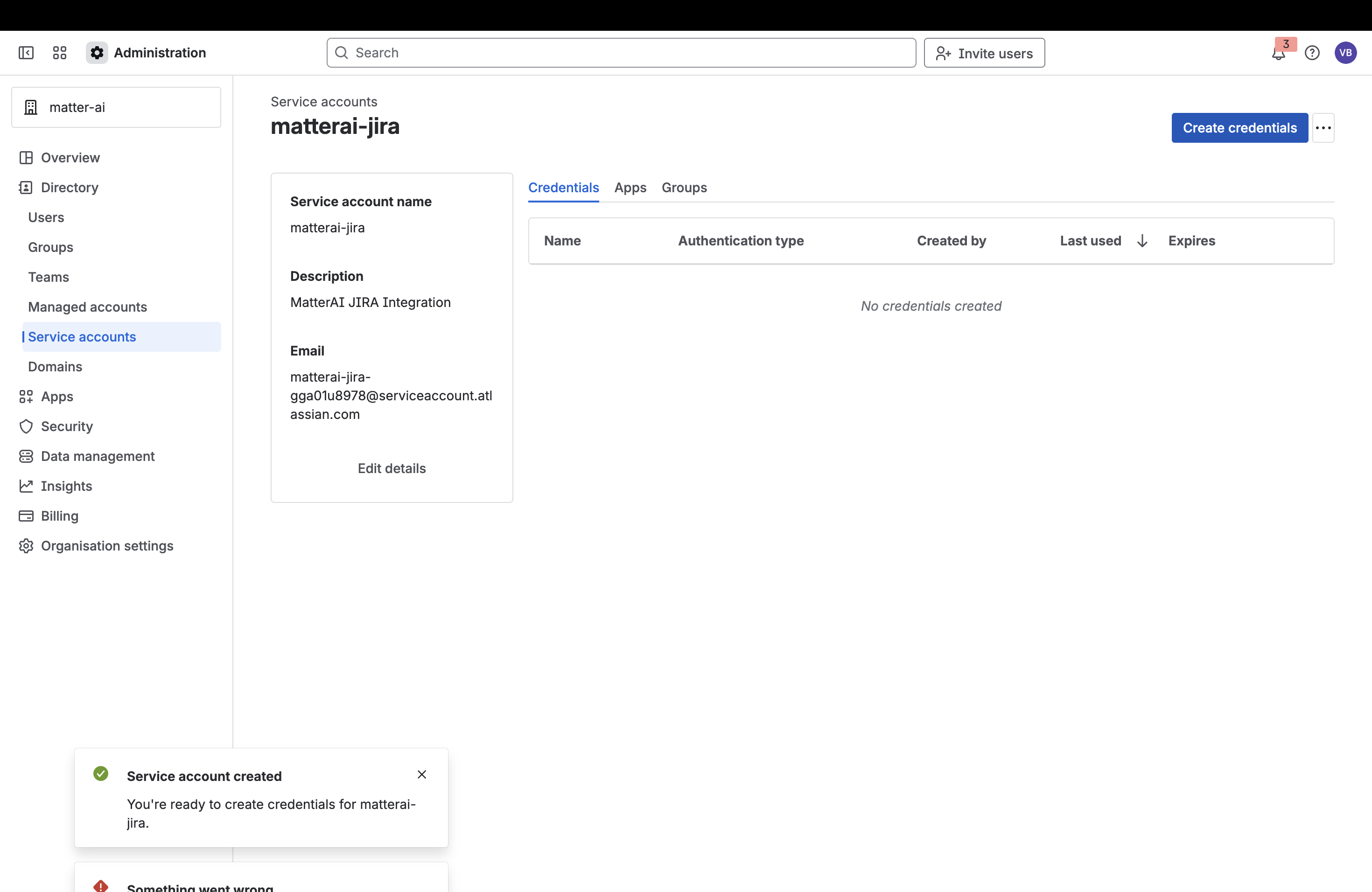 2. Choose **API token** as your authentication type and click **Next**.
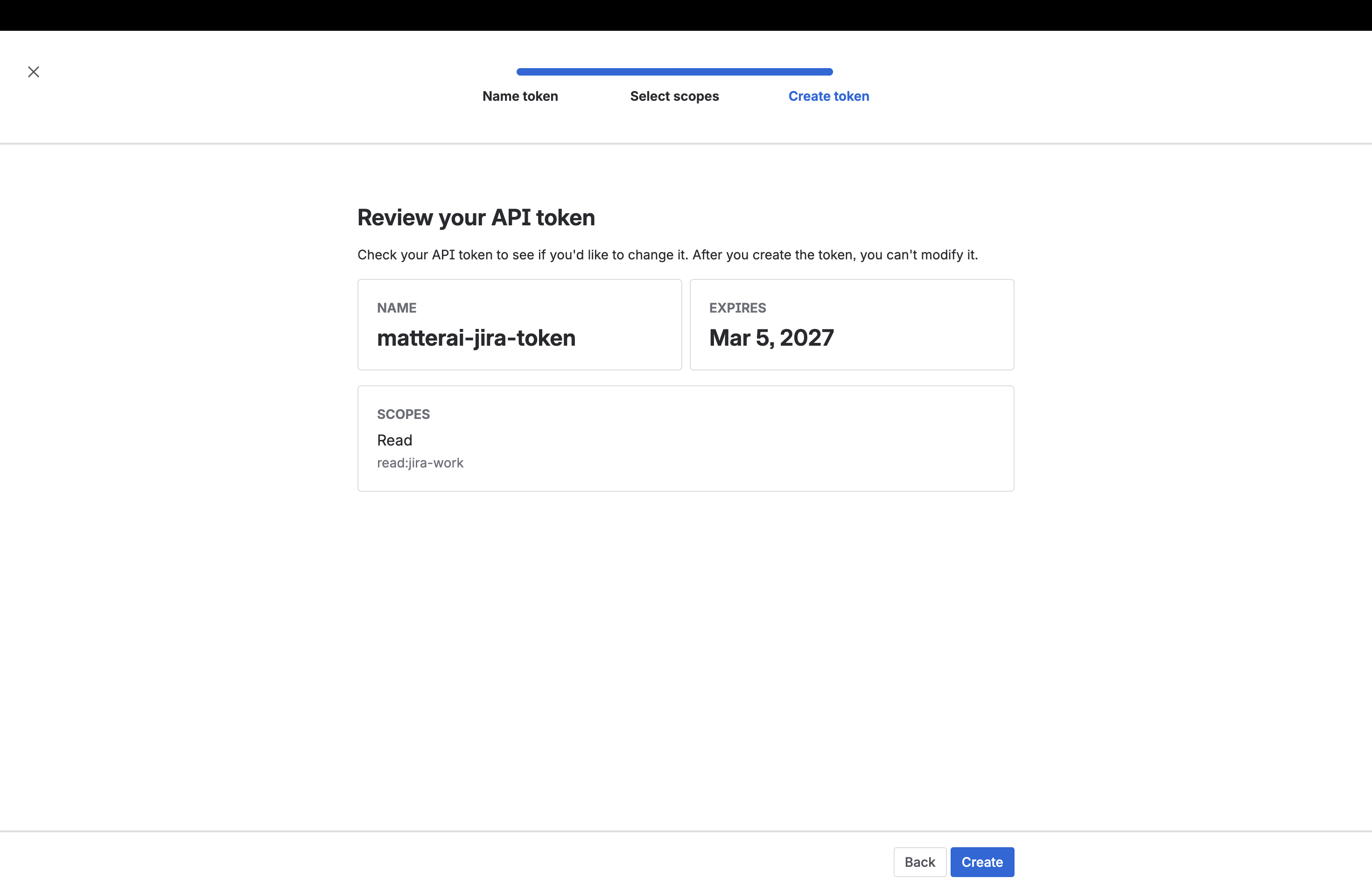
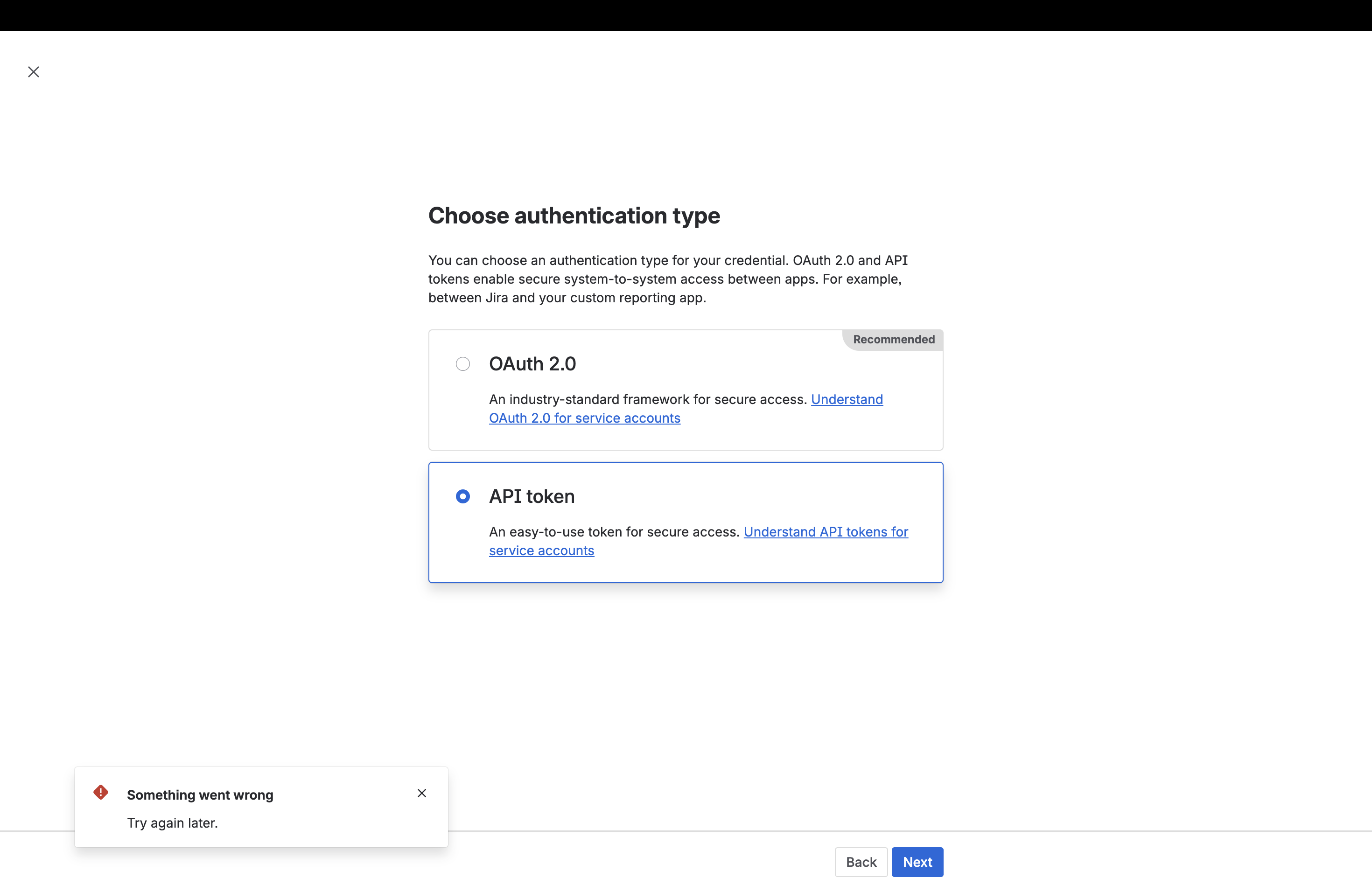 3. Give your token a name (such as `matterai-jira-token`), select an expiration date, and click **Next**.
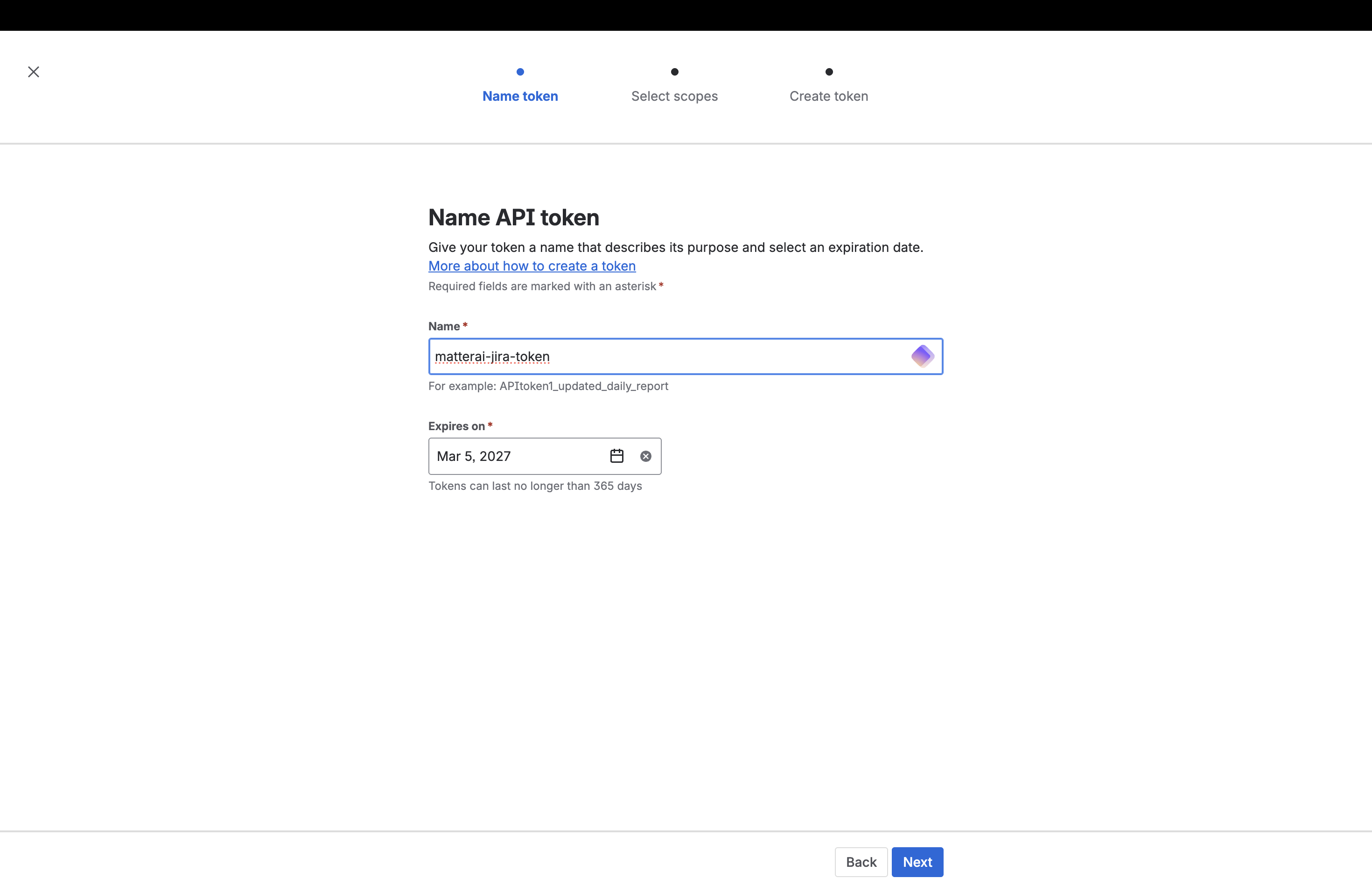 4. In the **Select token scopes** screen, search for and select the `read:jira-work` scope. This allows MatterAI to fetch your Jira issues and project data. Then, click **Next**.
 5. Review your API token details. Make sure the configuration is correct, then click **Create**.
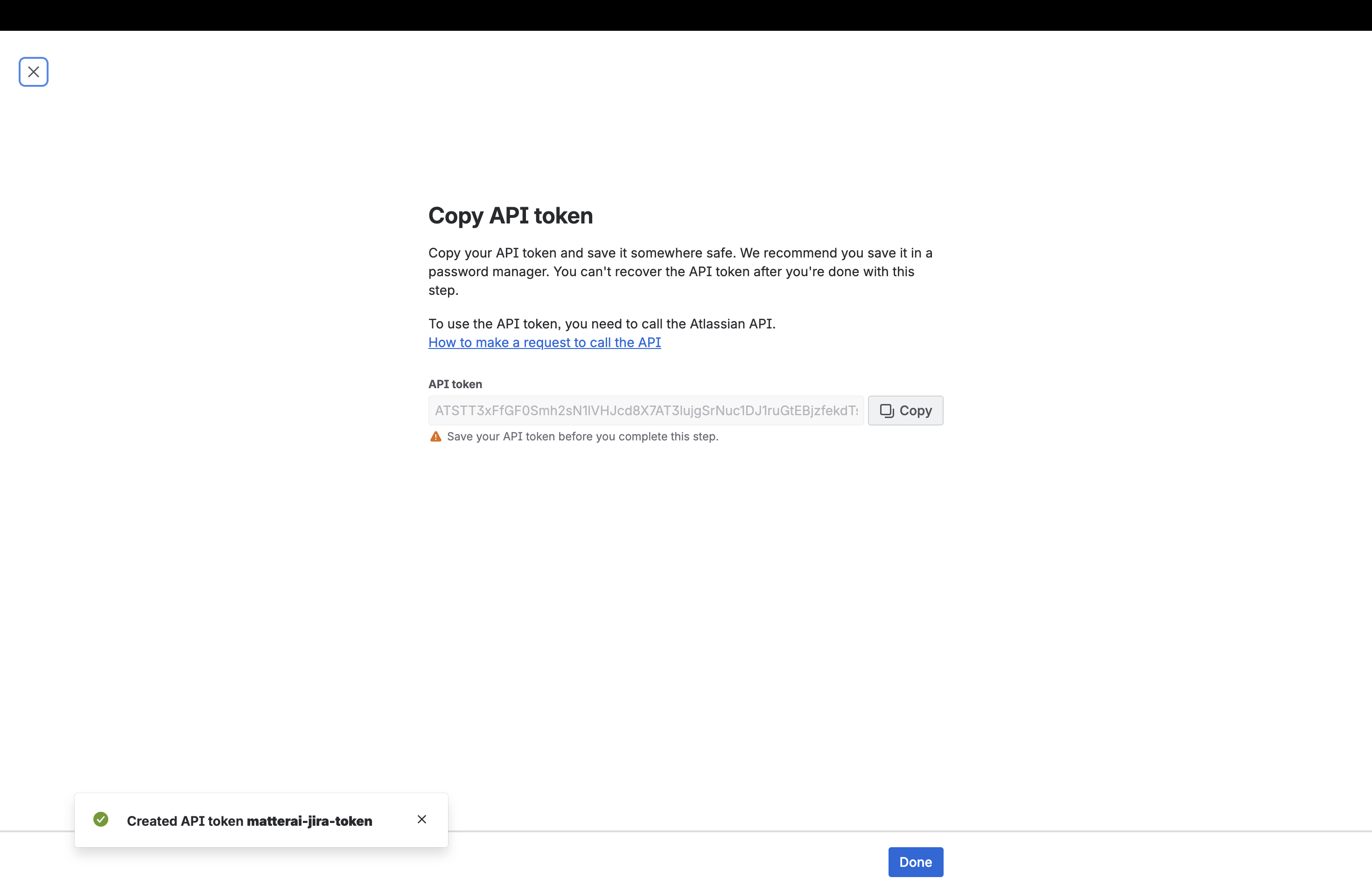
 6. Copy the generated API token. **Save it somewhere safe**, as you won't be able to retrieve it again. Click **Done**.
 ## Step 3: Connect to MatterAI
1. Visit the MatterAI web app [https://app.matterai.so/connectors](https://app.matterai.so/connectors) and navigate to **Connectors** on the left menu.
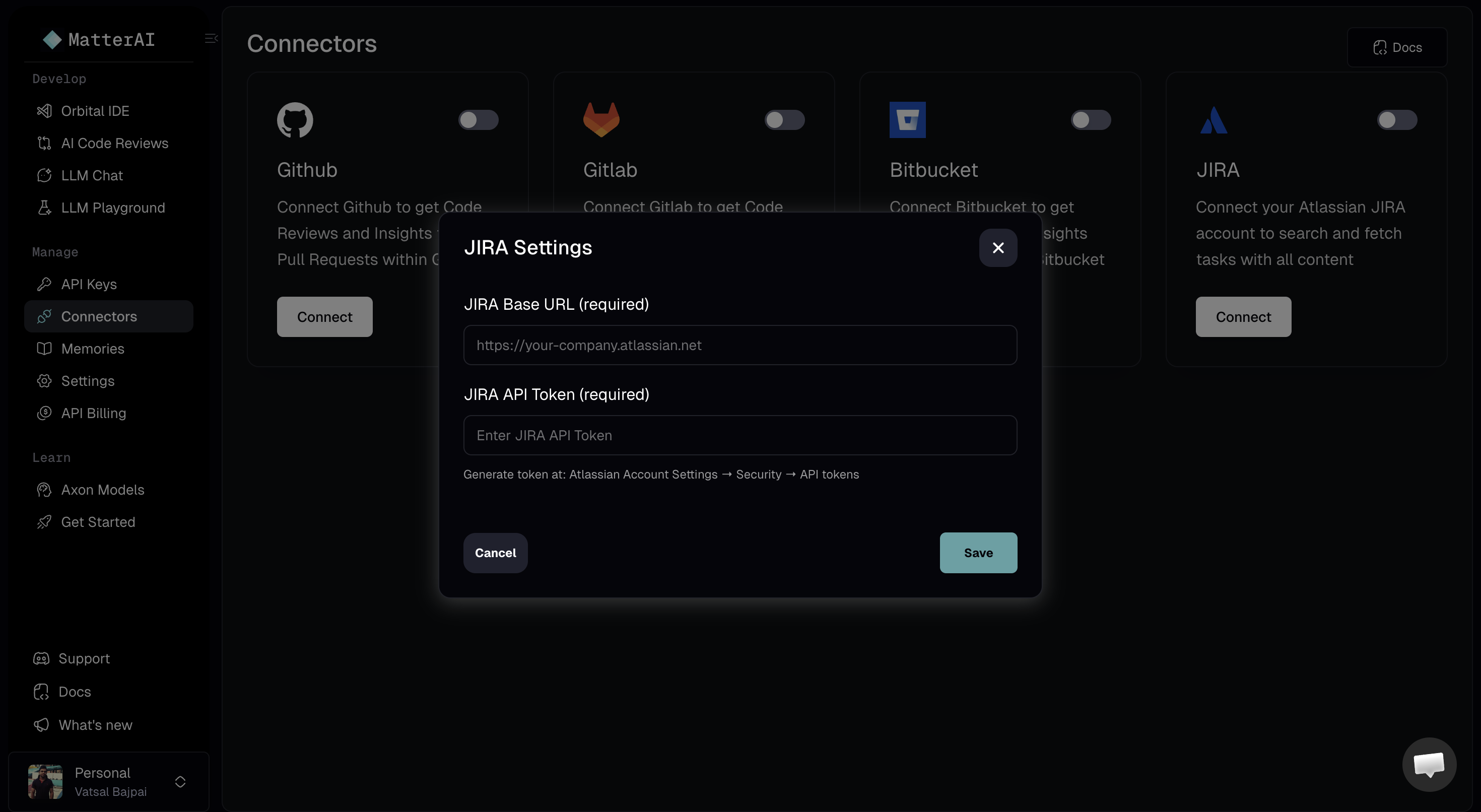
2. Under the **JIRA** connector card, click the **Connect** button.
3. In the JIRA Settings modal, enter your **JIRA Base URL** (e.g., `https://your-company.atlassian.net`).
4. Paste the **JIRA API Token** you copied during the previous step into the token field.
5. Click **Save** to complete the integration.
## Step 3: Connect to MatterAI
1. Visit the MatterAI web app [https://app.matterai.so/connectors](https://app.matterai.so/connectors) and navigate to **Connectors** on the left menu.
2. Under the **JIRA** connector card, click the **Connect** button.
3. In the JIRA Settings modal, enter your **JIRA Base URL** (e.g., `https://your-company.atlassian.net`).
4. Paste the **JIRA API Token** you copied during the previous step into the token field.
5. Click **Save** to complete the integration.
 You are now successfully connected! MatterAI can now interact with your Jira workspace.