> ## Documentation Index
> Fetch the complete documentation index at: https://docs.matterai.so/llms.txt
> Use this file to discover all available pages before exploring further.
# Enterprise Configurations
> Configure MatterAI for your enterprise deployment features as per your organization
These instructions are for self-hosted enterprise MatterAI deployments.
## Github App Configuration
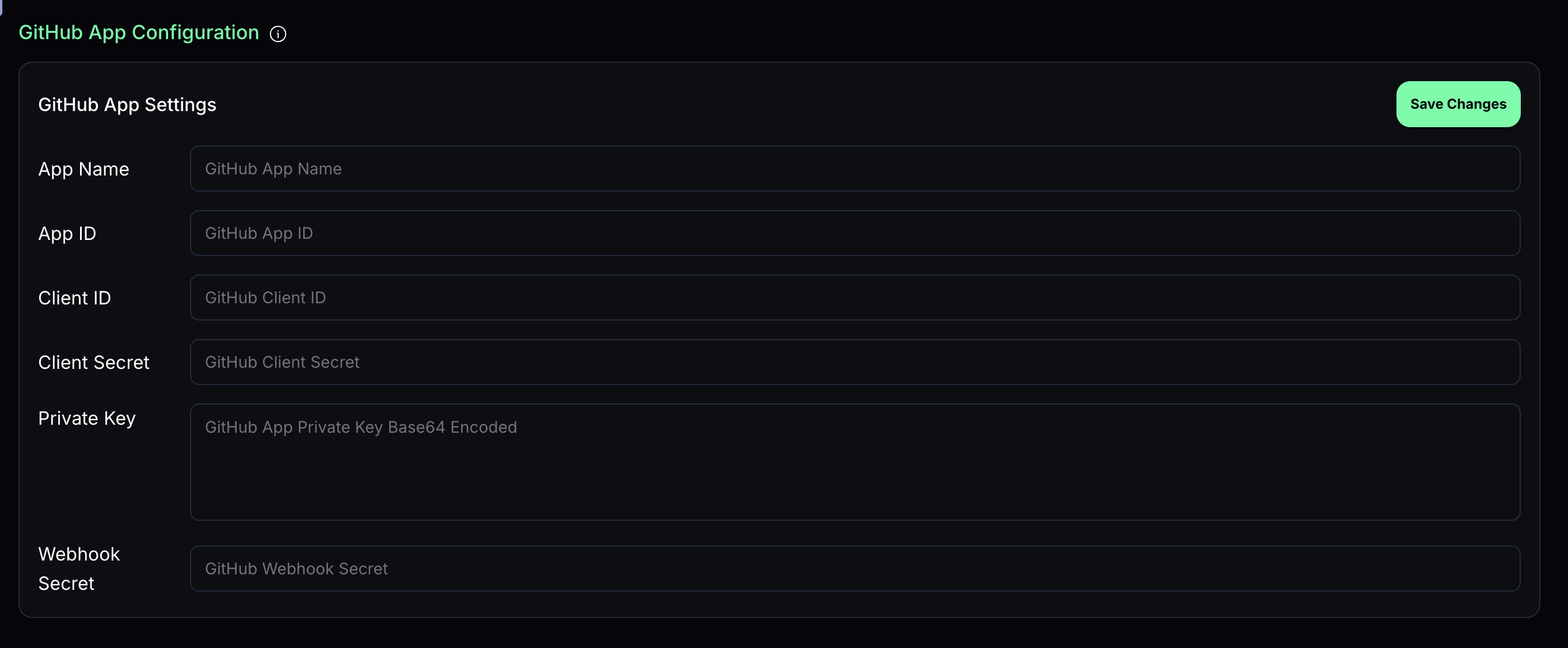
Once you have created your own GitHub App, you need to configure it for MatterAI.
Below are the configuration values needed:
* App Name
* App ID
* Client ID
* Client Secret
* Private Key (base64 encoded)
* Webhook Secret
Remember to Base64 encode the `private-key.pem`, you can run `base64 -i private-key.pem` and enter the output in the Private Key input box under github app config
 ## Review Configurations
Customize how MatterAI handles code reviews with the following settings:
## Review Configurations
Customize how MatterAI handles code reviews with the following settings:
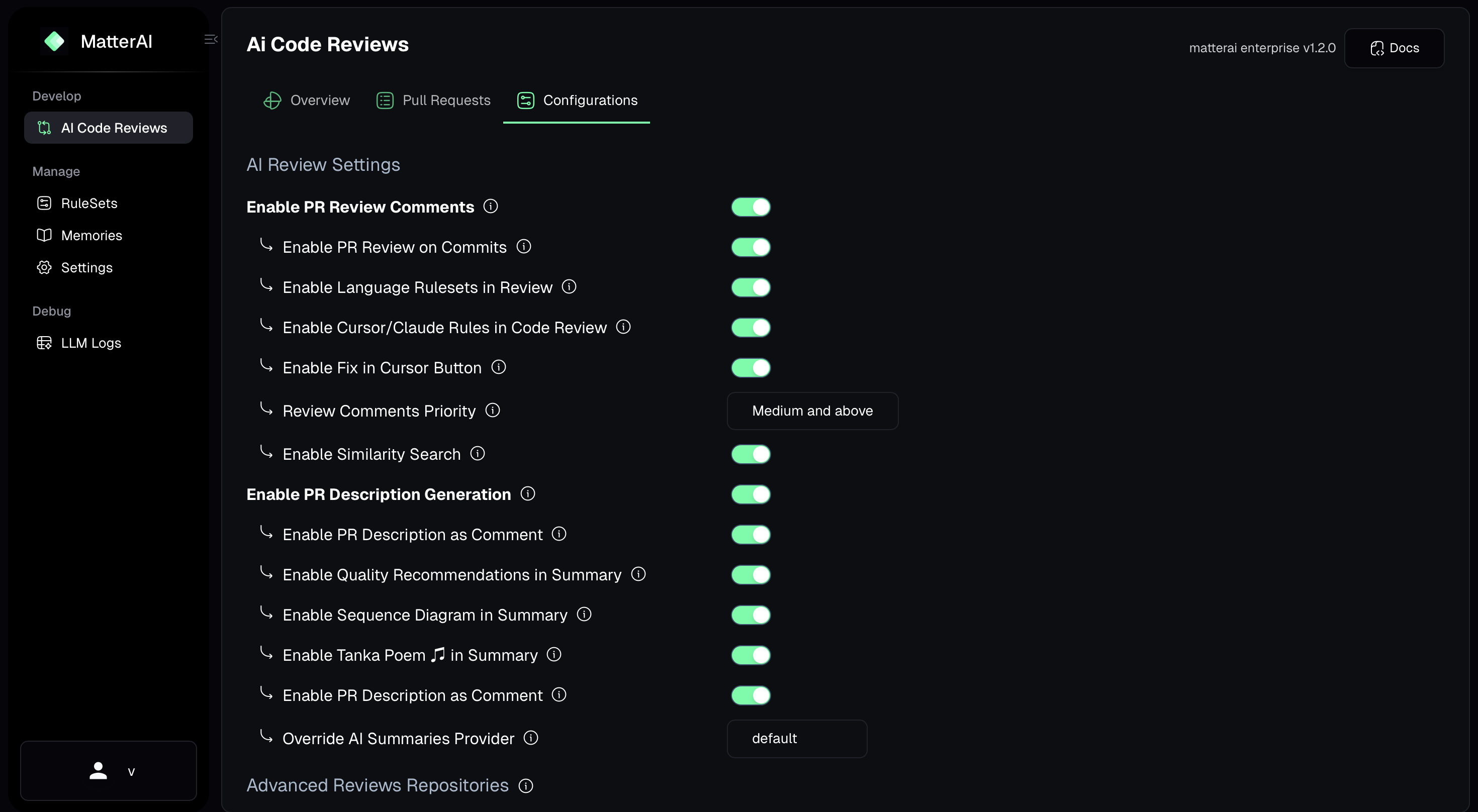 ### **Enable PR Review Comments**
When enabled, MatterAI will post detailed review comments on pull requests, highlighting potential issues and suggestions directly in the code diff.
#### Enable PR Review on Commits
When enabled, MatterAI will automatically review new commits pushed to pull requests, providing feedback on the latest changes.
#### Enable Language Rulesets in Review
When enabled, MatterAI will apply language-specific rules and best practices during code reviews, ensuring code quality and consistency.
#### Enable Similarity Search
When enabled, MatterAI will search for similar code patterns across your codebase to identify potential duplications or reusable components.
#### Enable Lite Review
When enabled, performs a faster, less resource-intensive review that focuses on critical issues only.
### **Enable PR Description Generation**
#### Enable PR Description as Comment
When enabled, the generated PR description will be posted as a comment instead of updating the PR description directly.
#### Enable Quality Recommendations in Summary
When enabled, includes code quality improvement recommendations in the review summary.
#### Enable Sequence Diagram in Summary
When enabled, generates and includes sequence diagrams in the review summary to help visualize complex interactions in the code.
## Disabled Repositories
Mark repositories that MatterAI should not review automatically. Manual reviews can be triggered for these repositories using `/matter` [commands](/features/command-list).
### **Enable PR Review Comments**
When enabled, MatterAI will post detailed review comments on pull requests, highlighting potential issues and suggestions directly in the code diff.
#### Enable PR Review on Commits
When enabled, MatterAI will automatically review new commits pushed to pull requests, providing feedback on the latest changes.
#### Enable Language Rulesets in Review
When enabled, MatterAI will apply language-specific rules and best practices during code reviews, ensuring code quality and consistency.
#### Enable Similarity Search
When enabled, MatterAI will search for similar code patterns across your codebase to identify potential duplications or reusable components.
#### Enable Lite Review
When enabled, performs a faster, less resource-intensive review that focuses on critical issues only.
### **Enable PR Description Generation**
#### Enable PR Description as Comment
When enabled, the generated PR description will be posted as a comment instead of updating the PR description directly.
#### Enable Quality Recommendations in Summary
When enabled, includes code quality improvement recommendations in the review summary.
#### Enable Sequence Diagram in Summary
When enabled, generates and includes sequence diagrams in the review summary to help visualize complex interactions in the code.
## Disabled Repositories
Mark repositories that MatterAI should not review automatically. Manual reviews can be triggered for these repositories using `/matter` [commands](/features/command-list).
 ## Advanced Code Review Repositories
Mark repositories that MatterAI should automatically review with advanced settings. Manual reviews can be triggered for these repositories using `/matter review-max`.
## Advanced Code Review Repositories
Mark repositories that MatterAI should automatically review with advanced settings. Manual reviews can be triggered for these repositories using `/matter review-max`.
 ## AI Provider Keys
### Setup
AI Provider keys are your AI API keys stored securely in MatterAI. You can create and manage them in the MatterAI dashboard.
## AI Provider Keys
### Setup
AI Provider keys are your AI API keys stored securely in MatterAI. You can create and manage them in the MatterAI dashboard.
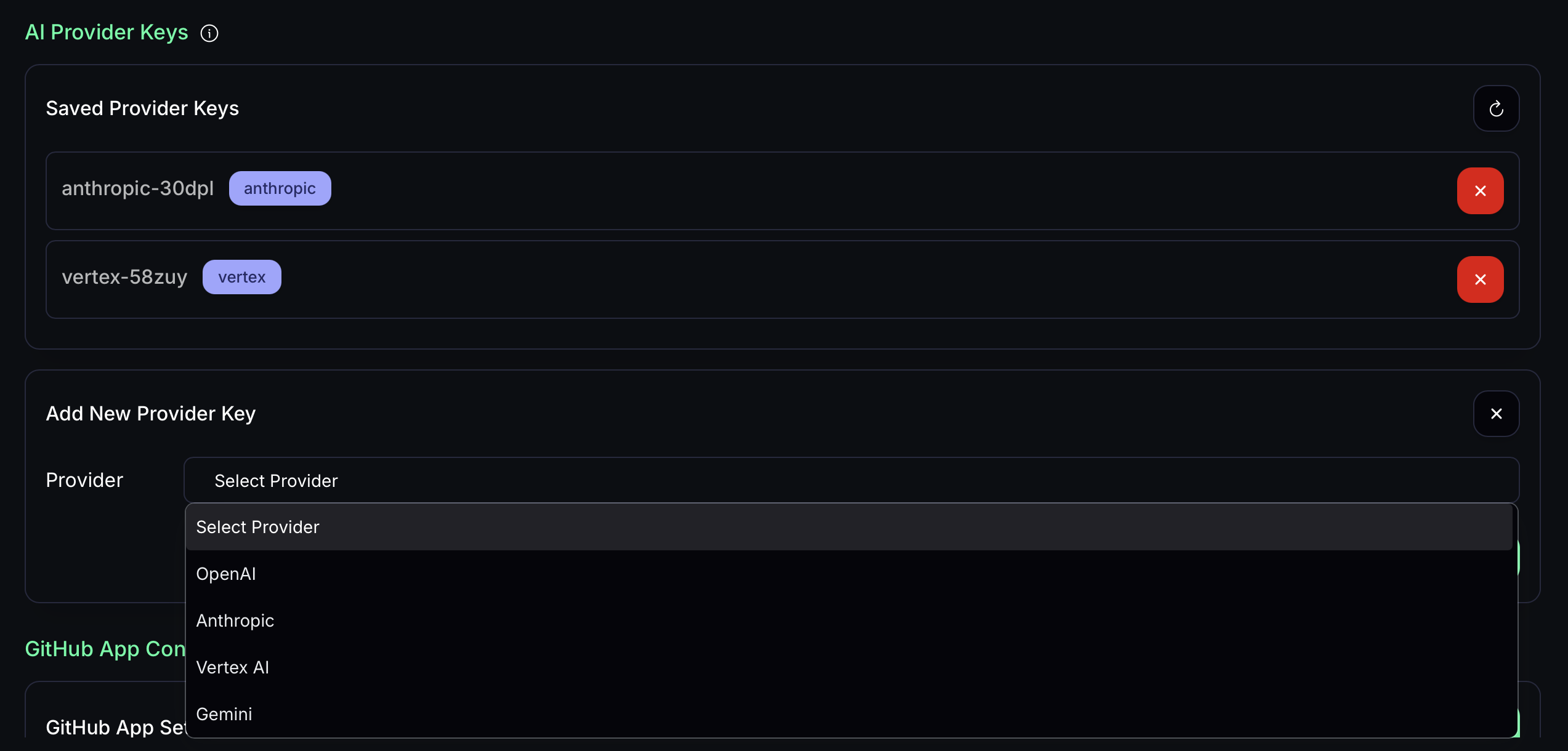 ### Anthropic
To setup Anthropic, simply add your API key in the MatterAI dashboard. You can get your API key from [Anthropic Console](https://console.anthropic.com/settings/keys)
### OpenAI
To setup OpenAI, simply add your API key in the MatterAI dashboard. You can get your API key from [OpenAI Console](https://platform.openai.com/api-keys)
### Gemini
To setup Gemini, simply add your API key in the MatterAI dashboard. You can get your API key from [Gemini Console](https://aistudio.google.com/app/apikey)
### Vertex AI
To setup Vertex AI, you need to create a service account in Google Cloud Console and required details as below.
* Project ID
* Project Location (eg; us-central1)
* Service Account JSON
#### Creating Service Account for Vertex AI
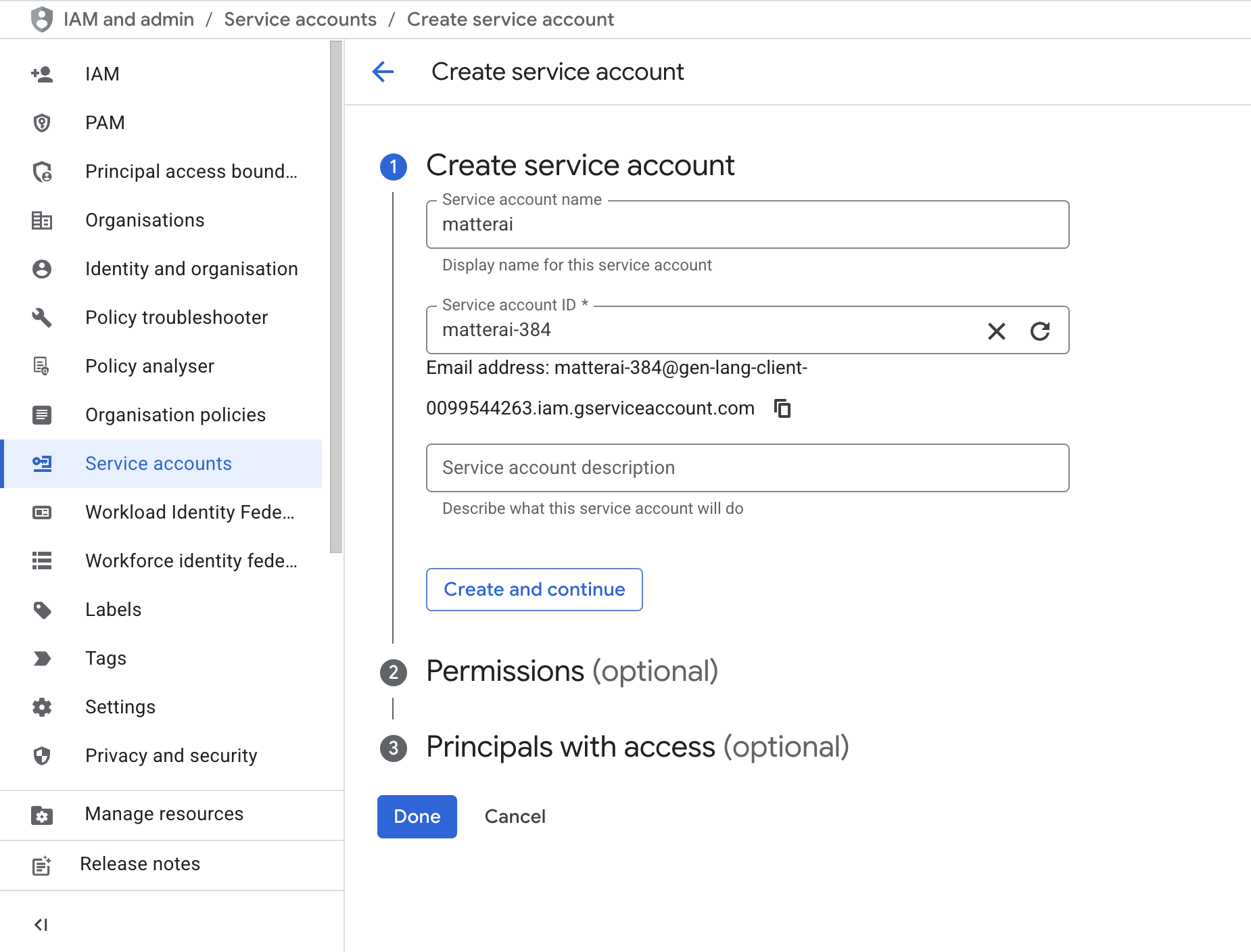
Visit GCP Console for Service Accounts and create a new Service Account: [https://console.cloud.google.com/iam-admin/serviceaccounts](https://console.cloud.google.com/iam-admin/serviceaccounts)
### Anthropic
To setup Anthropic, simply add your API key in the MatterAI dashboard. You can get your API key from [Anthropic Console](https://console.anthropic.com/settings/keys)
### OpenAI
To setup OpenAI, simply add your API key in the MatterAI dashboard. You can get your API key from [OpenAI Console](https://platform.openai.com/api-keys)
### Gemini
To setup Gemini, simply add your API key in the MatterAI dashboard. You can get your API key from [Gemini Console](https://aistudio.google.com/app/apikey)
### Vertex AI
To setup Vertex AI, you need to create a service account in Google Cloud Console and required details as below.
* Project ID
* Project Location (eg; us-central1)
* Service Account JSON
#### Creating Service Account for Vertex AI
Visit GCP Console for Service Accounts and create a new Service Account: [https://console.cloud.google.com/iam-admin/serviceaccounts](https://console.cloud.google.com/iam-admin/serviceaccounts)
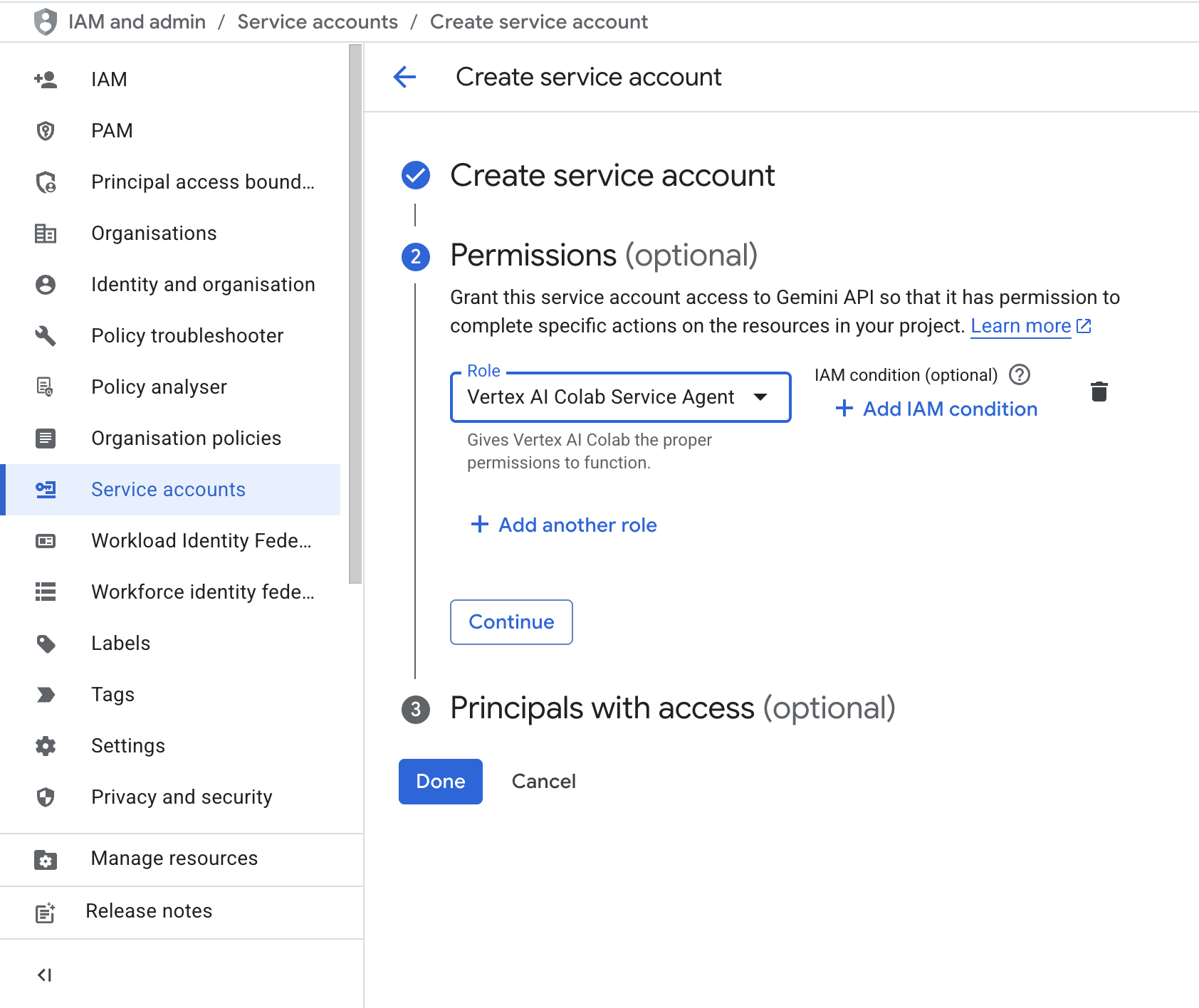
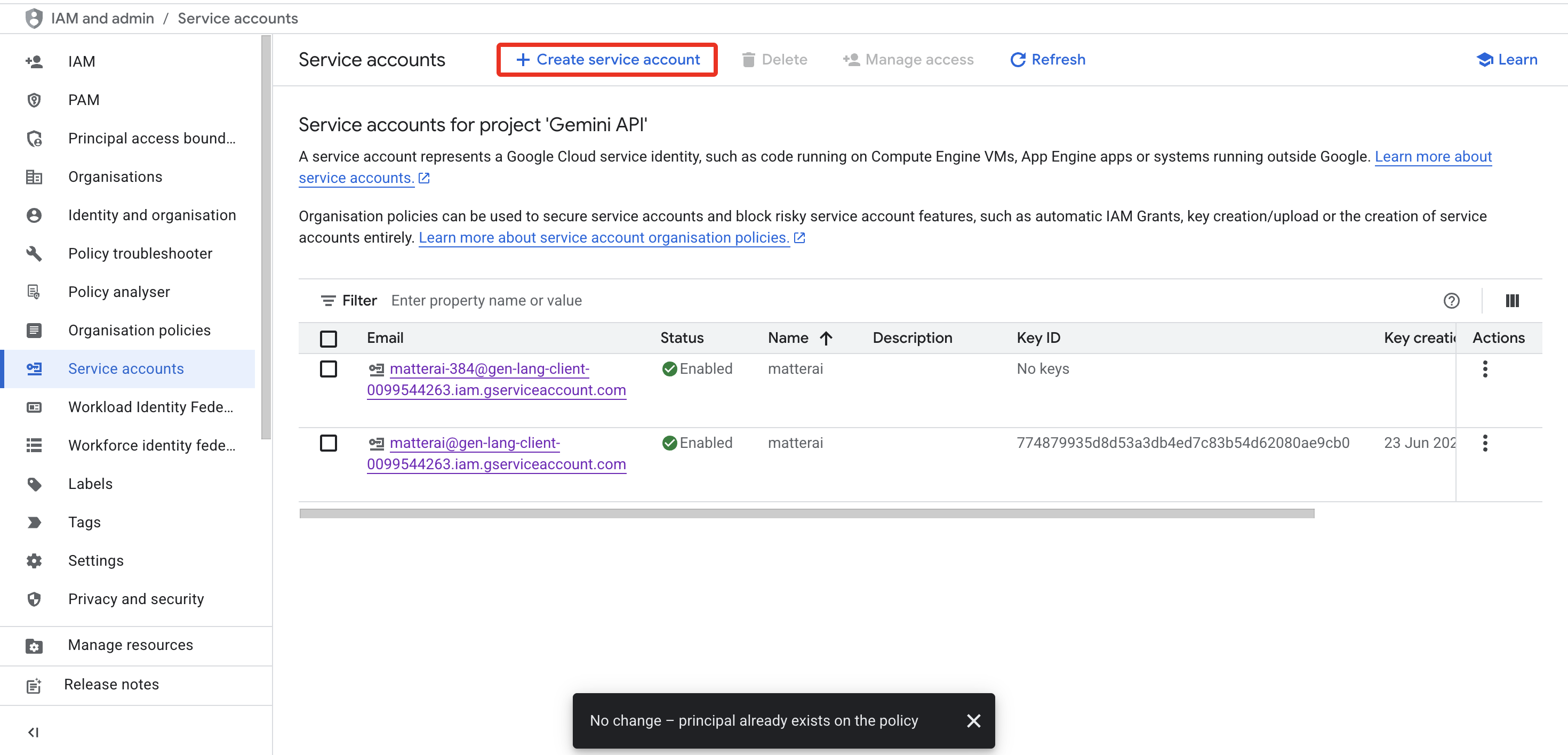 Configure the Service Account with required name and role.
* Name: `matterai`
* Role: `Vertex AI Colab Service Agent`
Configure the Service Account with required name and role.
* Name: `matterai`
* Role: `Vertex AI Colab Service Agent`
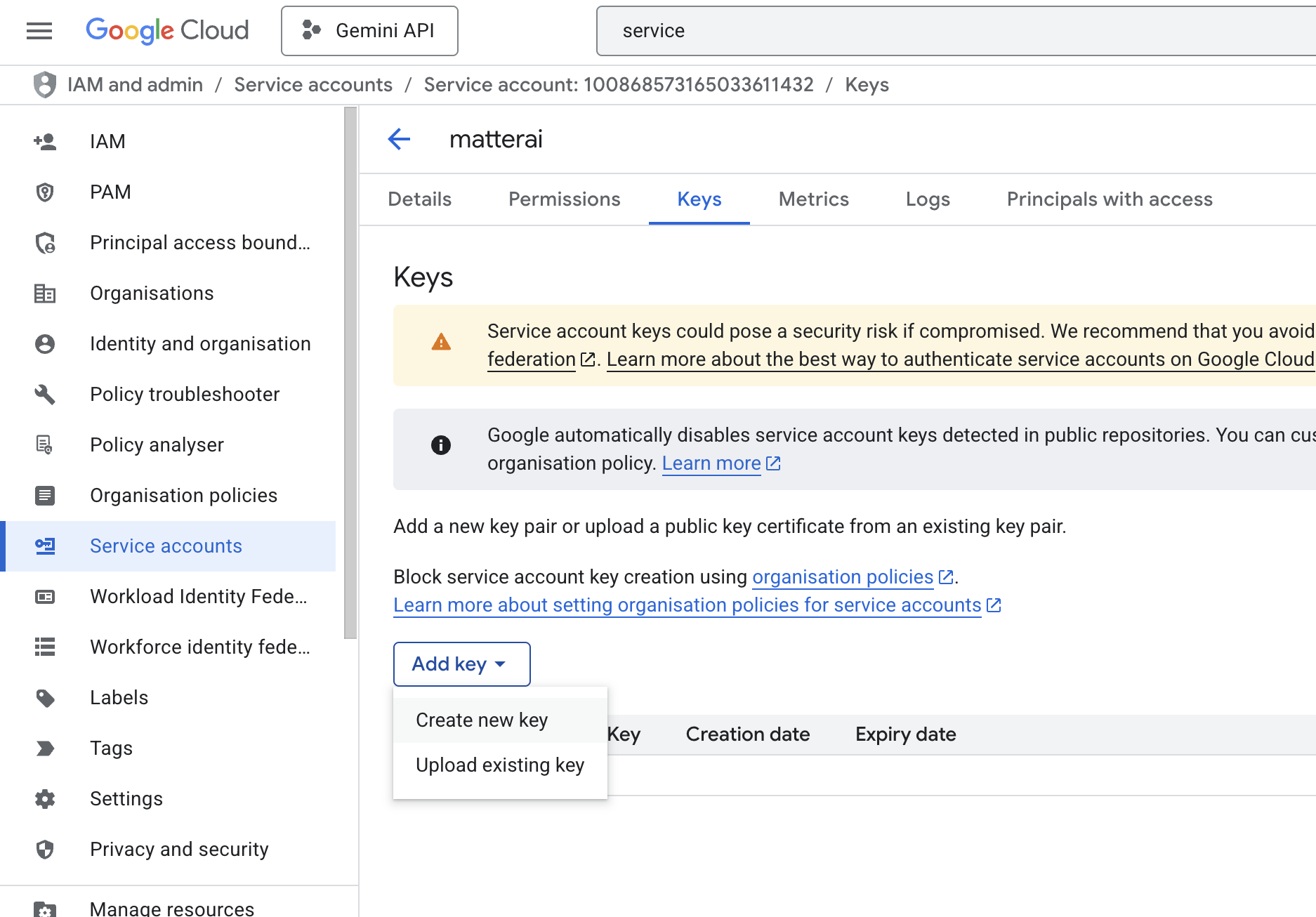
 Create a key for the service account and download the JSON file.
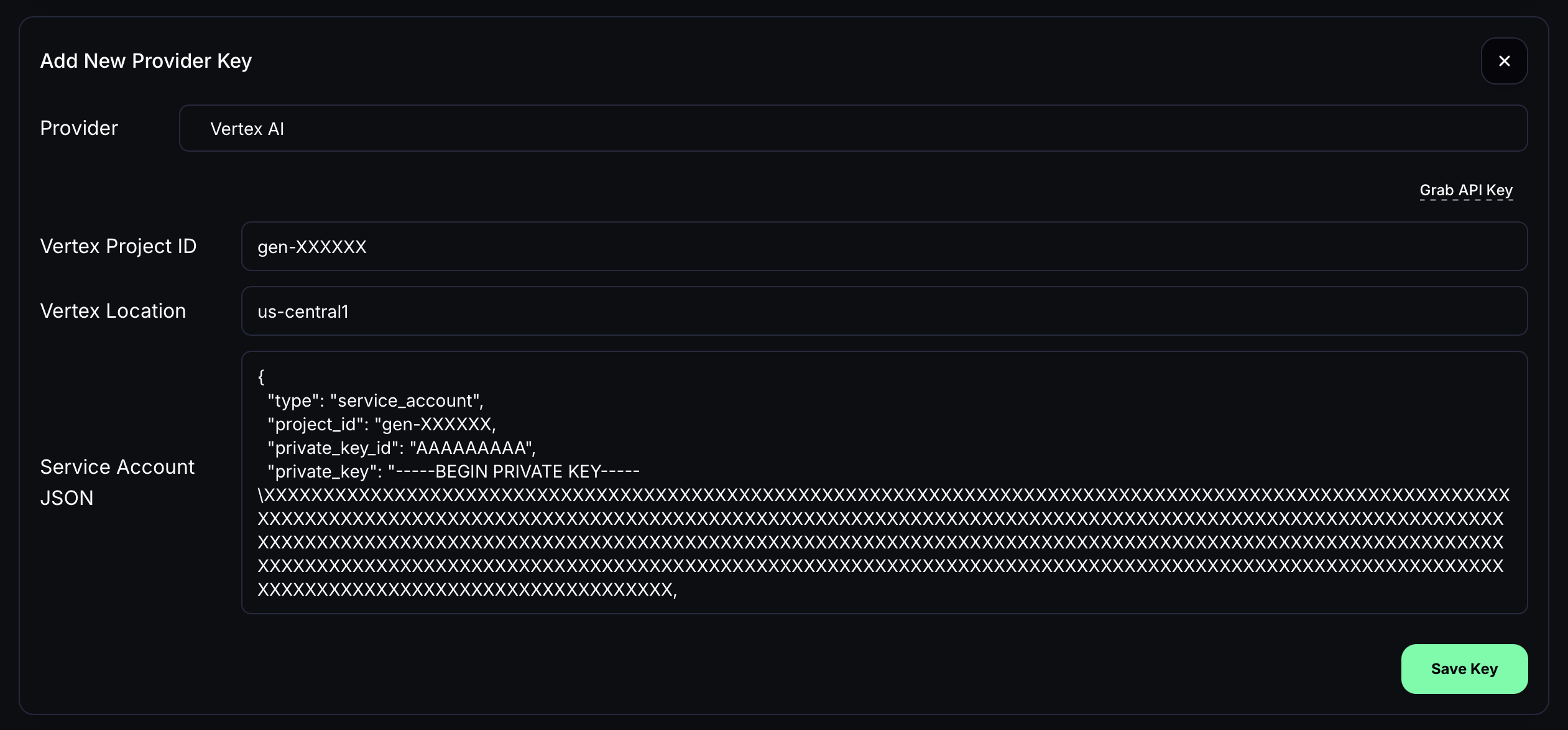
 Add the details in MatterAI dashboard.
* Project ID
* Project Location (eg; us-central1)
* Service Account JSON
Add the details in MatterAI dashboard.
* Project ID
* Project Location (eg; us-central1)
* Service Account JSON
 ## RuleSets
Rulesets are your custom organization-specific AI rules for languages, security and repositories stored securely in MatterAI. You can create and manage them in the MatterAI dashboard.
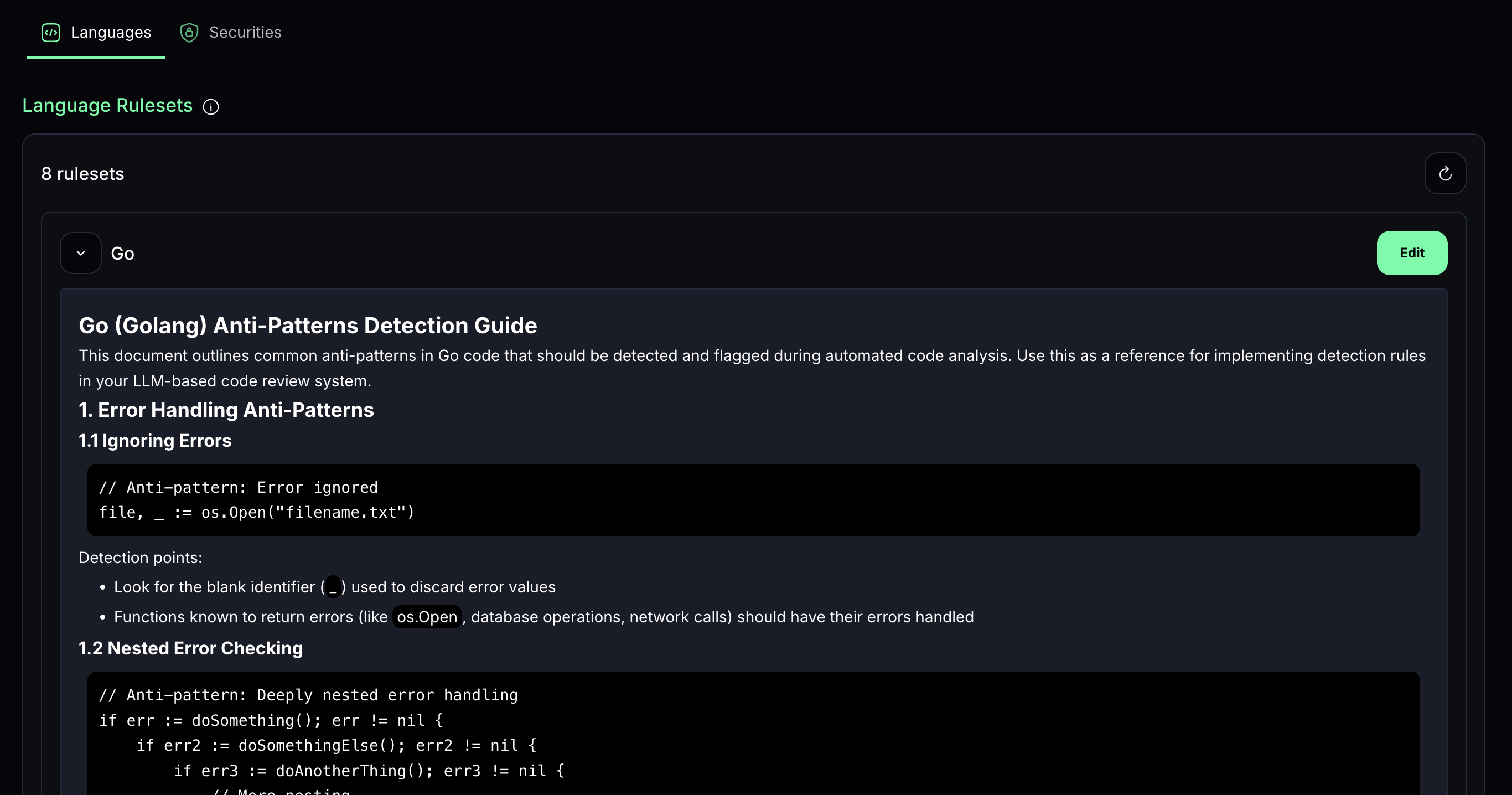
### Language Rules
Create or edit existing language rules in the MatterAI dashboard as per how AI should should review your codebase with specific instructions.
## RuleSets
Rulesets are your custom organization-specific AI rules for languages, security and repositories stored securely in MatterAI. You can create and manage them in the MatterAI dashboard.
### Language Rules
Create or edit existing language rules in the MatterAI dashboard as per how AI should should review your codebase with specific instructions.
 ### Security Rules
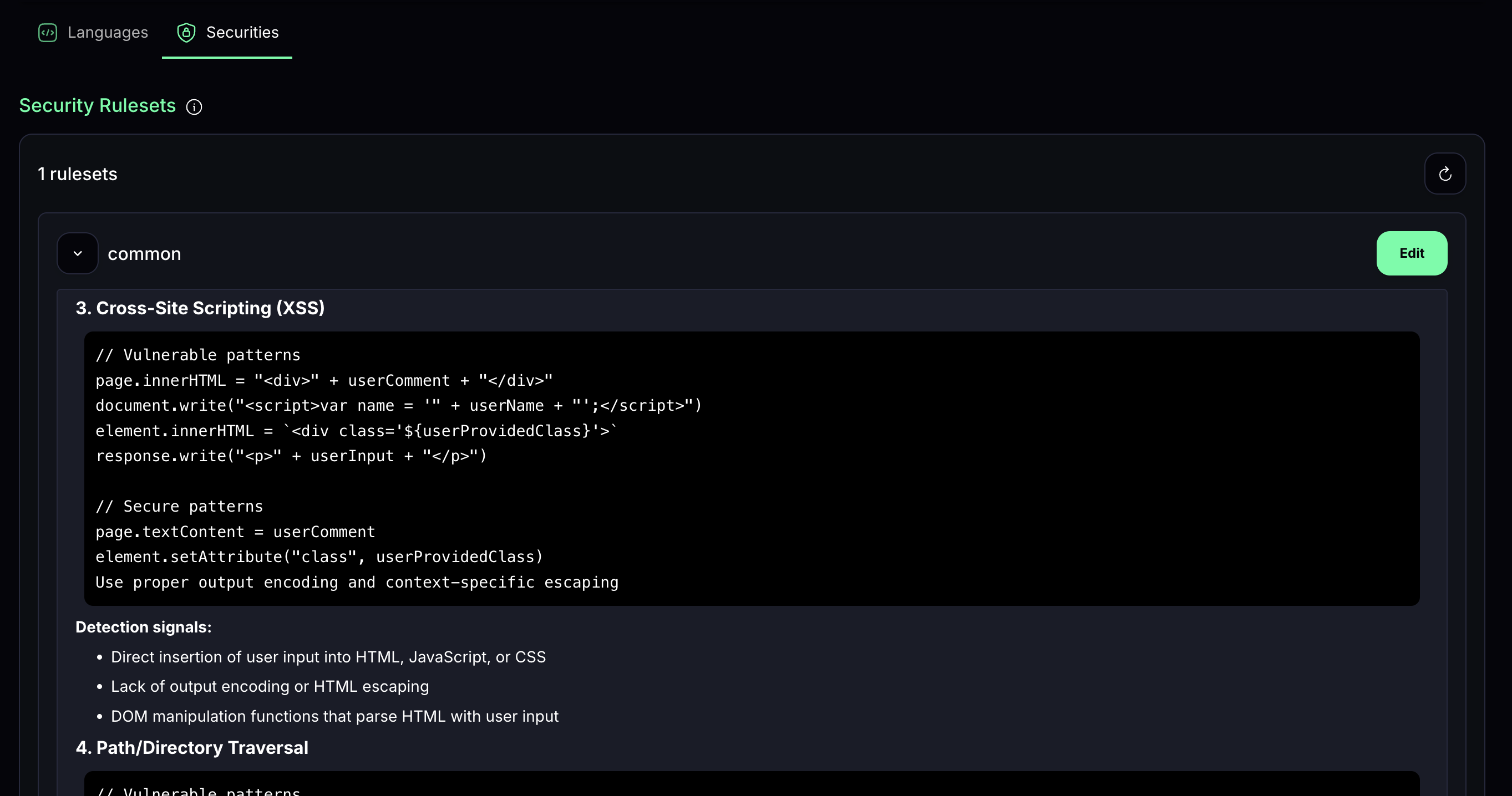
Create or edit existing security rules in the MatterAI dashboard as per how AI should should review your codebase with specific instructions.
### Security Rules
Create or edit existing security rules in the MatterAI dashboard as per how AI should should review your codebase with specific instructions.
 ## IDE Code Reviews
Transform your development workflow with Matter AI's new asynchronous review engine designed for IDE integration.
**Benefits:**
* Instant feedback submission without waiting for analysis
* IDE stays responsive during complex code reviews
* Perfect for large diffs and complex codebases
* Built-in retry logic and error handling
### Quick Setup
1. Install the Axon Code extension from [https://www.matterai.so/axon-ai-coding-agent](https://www.matterai.so/axon-ai-coding-agent) for your IDE
2. Keep your MatterAI Enterprise Backend URL and MCP Server Key ready
3. Setup Enterprise Configs
## IP Whitelisting
You can add MatterAI IP addresses to your Git provider firewall rules to ensure restricted access to API requests.
```
100.24.89.85
54.165.168.189
```
## IDE Code Reviews
Transform your development workflow with Matter AI's new asynchronous review engine designed for IDE integration.
**Benefits:**
* Instant feedback submission without waiting for analysis
* IDE stays responsive during complex code reviews
* Perfect for large diffs and complex codebases
* Built-in retry logic and error handling
### Quick Setup
1. Install the Axon Code extension from [https://www.matterai.so/axon-ai-coding-agent](https://www.matterai.so/axon-ai-coding-agent) for your IDE
2. Keep your MatterAI Enterprise Backend URL and MCP Server Key ready
3. Setup Enterprise Configs
## IP Whitelisting
You can add MatterAI IP addresses to your Git provider firewall rules to ensure restricted access to API requests.
```
100.24.89.85
54.165.168.189
```