> ## Documentation Index
> Fetch the complete documentation index at: https://docs.matterai.so/llms.txt
> Use this file to discover all available pages before exploring further.
# Kubernetes Deployment
> Deploy MatterAI on Kubernetes using Helm charts
## Infrastructure Diagram
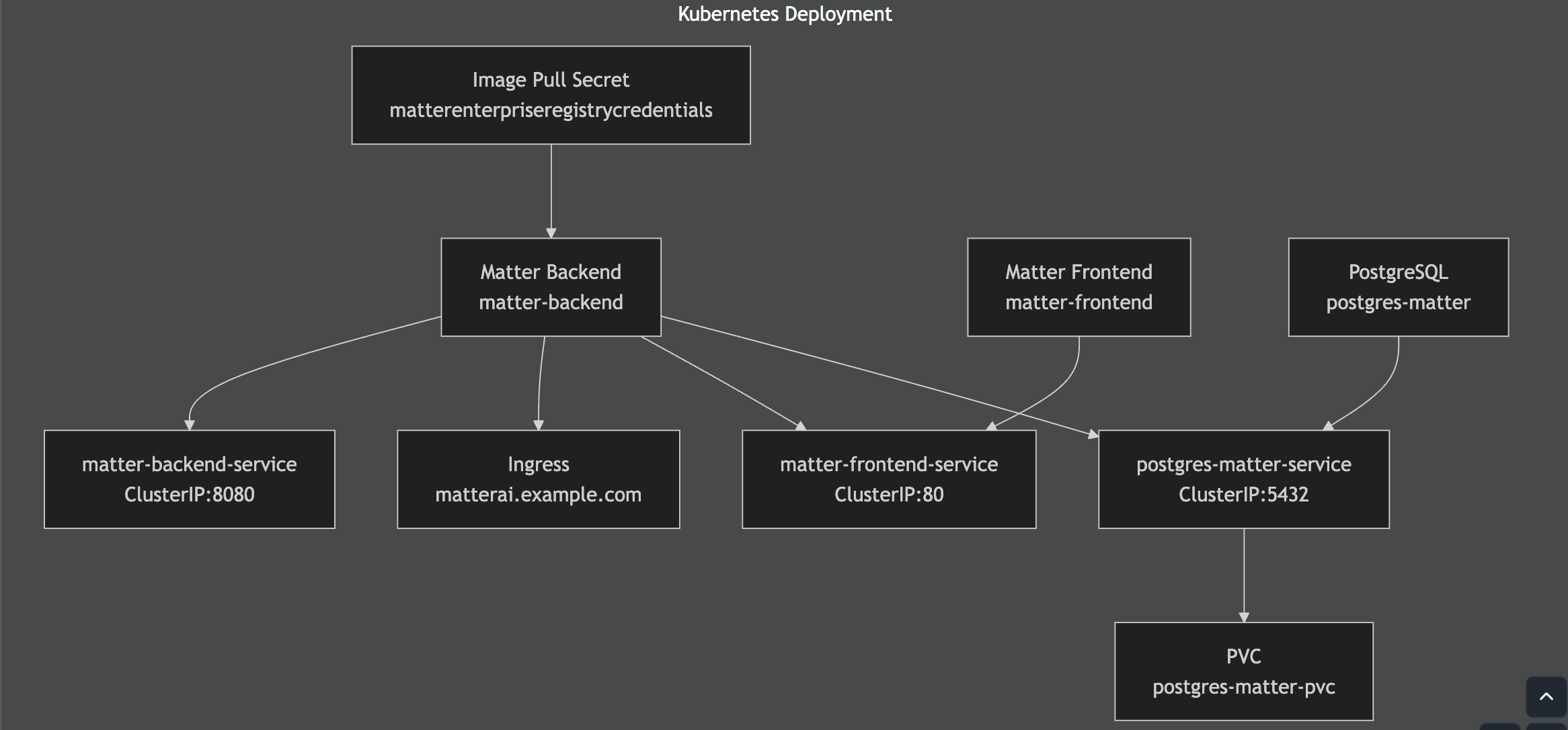 ## Prerequisites
* A Kubernetes cluster (e.g., Minikube, EKS, GKE, or AKS)
* Helm 3.0 or higher
* GitHub App credentials (see [Create Your Own GitHub App](/enterprise/create-your-own-github-app))
## Step 1: Add the Helm Chart Repository
```bash theme={null}
helm repo add gravity https://matteraiorg.github.io/helm
```
## Step 2: Configure the Helm Chart values
Create a values.yaml file in the same directory as the helm-chart directory:
```yaml theme={null}
global:
namespace: "matterai"
storageClass: "standard"
nodeSelector: []
annotations: []
imageCredentials:
- name: matterenterpriseregistrycredentials
create: true
registry: https://index.docker.io/v1/
username: ""
password: ""
email: "" # Optional
# Or use direct auth token
auth: "" # Base64 encoded auth token
imagePullSecrets: [matterenterpriseregistrycredentials]
components:
matterBackend:
enabled: true
deployment:
name: matter-backend
replicas: 1
image:
repository: gravitycloud/matter-enterprise
tag: latest
pullPolicy: Always
resources:
requests:
memory: "256Mi"
cpu: "250m"
limits:
memory: "512Mi"
cpu: "500m"
env:
EMAIL_DOMAIN: "example.com"
POSTGRES_HOST: "postgres-matter-service"
POSTGRES_USER: ""
POSTGRES_PASSWORD:
valueFrom:
secretKeyRef:
name: postgres-matter-secrets
key: postgres-password
service:
name: matter-backend-service
type: ClusterIP
port: 8080
targetPort: 8080
ingress:
enabled: true
className: "nginx"
annotations:
nginx.ingress.kubernetes.io/ssl-redirect: "true"
hosts:
- host: matterai.example.com
paths:
- path: /
pathType: Prefix
tls:
- secretName: matterai-backend-tls
hosts:
- matterai.example.com
matterFrontend:
enabled: true
deployment:
name: matter-frontend
replicas: 1
image:
repository: gravitycloud/matter-frontend
tag: latest
resources:
requests:
memory: "256Mi"
cpu: "250m"
limits:
memory: "512Mi"
cpu: "500m"
volumes:
- name: runtime-config
configMap:
name: matter-frontend-config
- name: matter-nginx-config
configMap:
name: matter-nginx-config
volumeMounts:
- name: runtime-config
mountPath: /app/build/config/config.js
subPath: config.js
- name: matter-nginx-config
mountPath: /etc/nginx/conf.d/default.conf
subPath: nginx.conf
service:
name: matter-frontend-service
type: ClusterIP
port: 80
targetPort: 80
ingress:
enabled: false
className: "nginx"
annotations:
nginx.ingress.kubernetes.io/ssl-redirect: "true"
hosts:
- host: matterai.example.com
paths:
- path: /
pathType: Prefix
tls:
- secretName: matterai-frontend-tls
hosts:
- matterai.example.com
postgres:
enabled: true
deployment:
name: postgres-matter
replicas: 1
image:
repository: postgres
tag: latest
pullPolicy: IfNotPresent
resources:
requests:
memory: "256Mi"
cpu: "250m"
limits:
memory: "512Mi"
cpu: "500m"
env:
POSTGRES_DB: ""
POSTGRES_USER: ""
POSTGRES_PASSWORD:
valueFrom:
secretKeyRef:
name: postgres-matter-secrets
key: postgres-password
volumeMounts:
- name: postgres-data
mountPath: /var/lib/postgresql/data
subPath: postgres
volumes:
- name: postgres-data
persistentVolumeClaim:
claimName: postgres-matter-pvc
service:
name: postgres-matter-service
type: ClusterIP
port: 5432
targetPort: 5432
persistence:
postgres:
enabled: true
name: postgres-matter-pvc
size: "1Gi"
accessMode: ReadWriteOnce
secrets:
postgres:
name: postgres-matter-secrets
data:
postgres-password: ""
```
### Step 3 Install the Helm Chart
```bash theme={null}
helm upgrade --install matter-ai-enterprise gravity/matter-ai-enterprise -f matter-enterprise-values.yaml -n matterai --create-namespace
```
## Step 4: Visit the UI and create a new account
Access the MatterAI web interface at `http://your-domain.com` (or `http://localhost:3000` if not using a reverse proxy)
## Maintenance and Updates
### Updating MatterAI
To update to the latest version of MatterAI:
```bash theme={null}
# Pull the latest chart
helm repo update
# Update the release
helm upgrade matter-ai-enterprise gravity/matter-ai-enterprise -f matter-enterprise-values.yaml -n matterai
```
## Next steps
Configure MatterAI for your enterprise deployment
## Prerequisites
* A Kubernetes cluster (e.g., Minikube, EKS, GKE, or AKS)
* Helm 3.0 or higher
* GitHub App credentials (see [Create Your Own GitHub App](/enterprise/create-your-own-github-app))
## Step 1: Add the Helm Chart Repository
```bash theme={null}
helm repo add gravity https://matteraiorg.github.io/helm
```
## Step 2: Configure the Helm Chart values
Create a values.yaml file in the same directory as the helm-chart directory:
```yaml theme={null}
global:
namespace: "matterai"
storageClass: "standard"
nodeSelector: []
annotations: []
imageCredentials:
- name: matterenterpriseregistrycredentials
create: true
registry: https://index.docker.io/v1/
username: ""
password: ""
email: "" # Optional
# Or use direct auth token
auth: "" # Base64 encoded auth token
imagePullSecrets: [matterenterpriseregistrycredentials]
components:
matterBackend:
enabled: true
deployment:
name: matter-backend
replicas: 1
image:
repository: gravitycloud/matter-enterprise
tag: latest
pullPolicy: Always
resources:
requests:
memory: "256Mi"
cpu: "250m"
limits:
memory: "512Mi"
cpu: "500m"
env:
EMAIL_DOMAIN: "example.com"
POSTGRES_HOST: "postgres-matter-service"
POSTGRES_USER: ""
POSTGRES_PASSWORD:
valueFrom:
secretKeyRef:
name: postgres-matter-secrets
key: postgres-password
service:
name: matter-backend-service
type: ClusterIP
port: 8080
targetPort: 8080
ingress:
enabled: true
className: "nginx"
annotations:
nginx.ingress.kubernetes.io/ssl-redirect: "true"
hosts:
- host: matterai.example.com
paths:
- path: /
pathType: Prefix
tls:
- secretName: matterai-backend-tls
hosts:
- matterai.example.com
matterFrontend:
enabled: true
deployment:
name: matter-frontend
replicas: 1
image:
repository: gravitycloud/matter-frontend
tag: latest
resources:
requests:
memory: "256Mi"
cpu: "250m"
limits:
memory: "512Mi"
cpu: "500m"
volumes:
- name: runtime-config
configMap:
name: matter-frontend-config
- name: matter-nginx-config
configMap:
name: matter-nginx-config
volumeMounts:
- name: runtime-config
mountPath: /app/build/config/config.js
subPath: config.js
- name: matter-nginx-config
mountPath: /etc/nginx/conf.d/default.conf
subPath: nginx.conf
service:
name: matter-frontend-service
type: ClusterIP
port: 80
targetPort: 80
ingress:
enabled: false
className: "nginx"
annotations:
nginx.ingress.kubernetes.io/ssl-redirect: "true"
hosts:
- host: matterai.example.com
paths:
- path: /
pathType: Prefix
tls:
- secretName: matterai-frontend-tls
hosts:
- matterai.example.com
postgres:
enabled: true
deployment:
name: postgres-matter
replicas: 1
image:
repository: postgres
tag: latest
pullPolicy: IfNotPresent
resources:
requests:
memory: "256Mi"
cpu: "250m"
limits:
memory: "512Mi"
cpu: "500m"
env:
POSTGRES_DB: ""
POSTGRES_USER: ""
POSTGRES_PASSWORD:
valueFrom:
secretKeyRef:
name: postgres-matter-secrets
key: postgres-password
volumeMounts:
- name: postgres-data
mountPath: /var/lib/postgresql/data
subPath: postgres
volumes:
- name: postgres-data
persistentVolumeClaim:
claimName: postgres-matter-pvc
service:
name: postgres-matter-service
type: ClusterIP
port: 5432
targetPort: 5432
persistence:
postgres:
enabled: true
name: postgres-matter-pvc
size: "1Gi"
accessMode: ReadWriteOnce
secrets:
postgres:
name: postgres-matter-secrets
data:
postgres-password: ""
```
### Step 3 Install the Helm Chart
```bash theme={null}
helm upgrade --install matter-ai-enterprise gravity/matter-ai-enterprise -f matter-enterprise-values.yaml -n matterai --create-namespace
```
## Step 4: Visit the UI and create a new account
Access the MatterAI web interface at `http://your-domain.com` (or `http://localhost:3000` if not using a reverse proxy)
## Maintenance and Updates
### Updating MatterAI
To update to the latest version of MatterAI:
```bash theme={null}
# Pull the latest chart
helm repo update
# Update the release
helm upgrade matter-ai-enterprise gravity/matter-ai-enterprise -f matter-enterprise-values.yaml -n matterai
```
## Next steps
Configure MatterAI for your enterprise deployment