> ## Documentation Index
> Fetch the complete documentation index at: https://docs.matterai.so/llms.txt
> Use this file to discover all available pages before exploring further.
# GitLab AI Code Reviews
> Install MatterAI on GitLab for AI Code Reviews and more
All Pricing and Features are same on GitLab as on Github
# MatterAI GitLab Integration
MatterAI seamlessly integrates with GitLab to enhance your development workflow by:
* Automatically initiating AI-powered code reviews for new merge requests
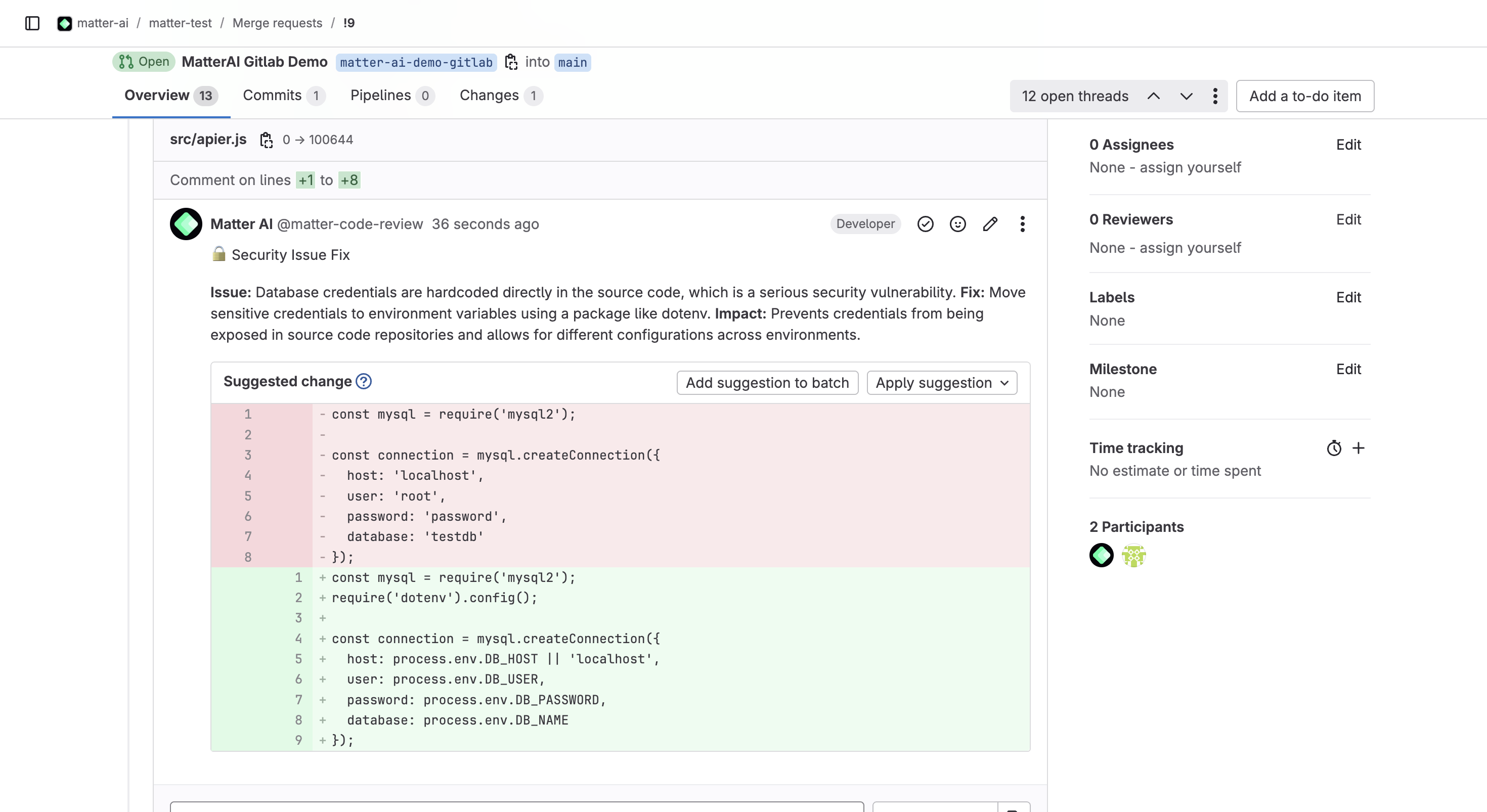
* Displaying intelligent review comments directly within merge requests
* Providing real-time assistance through the MatterAI bot
Follow these steps to integrate MatterAI with your GitLab repositories:
## Step 1: Create a Dedicated MatterAI User (Recommended, but optional)
We recommend creating a dedicated service account for MatterAI with these best practices:
1. Create a new **GitLab user specifically for MatterAI integration**
2. Name the account **matter-ai** for easy identification
3. Use a **dedicated email address** for this account
4. Upload the **MatterAI logo** as the profile picture. You can find it here: [https://raw.githubusercontent.com/GravityCloudAI/public-assets/refs/heads/main/logos/matter-logo.svg](https://raw.githubusercontent.com/GravityCloudAI/public-assets/refs/heads/main/logos/matter-logo.svg)
5. Ensure this user has at least **Maintainer access** to your target repositories
## Step 2: Generate Personal Access Token
1. Log in using the dedicated MatterAI service account
2. Click your avatar on the left sidebar and select **Edit Profile**
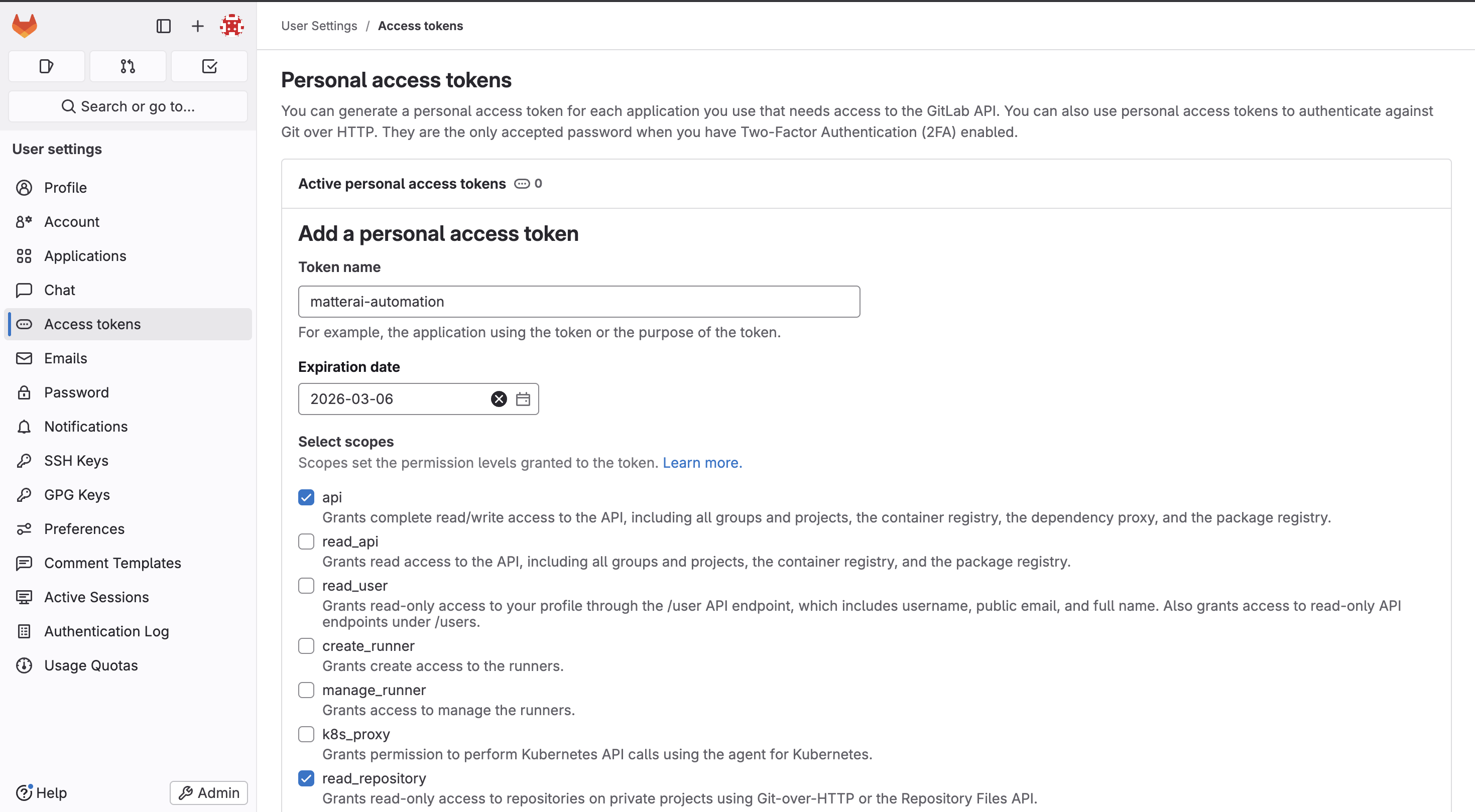
3. Choose **Access Tokens** from the left menu
4. Click **Add New Token**
5. Enter a descriptive name and set an expiration date
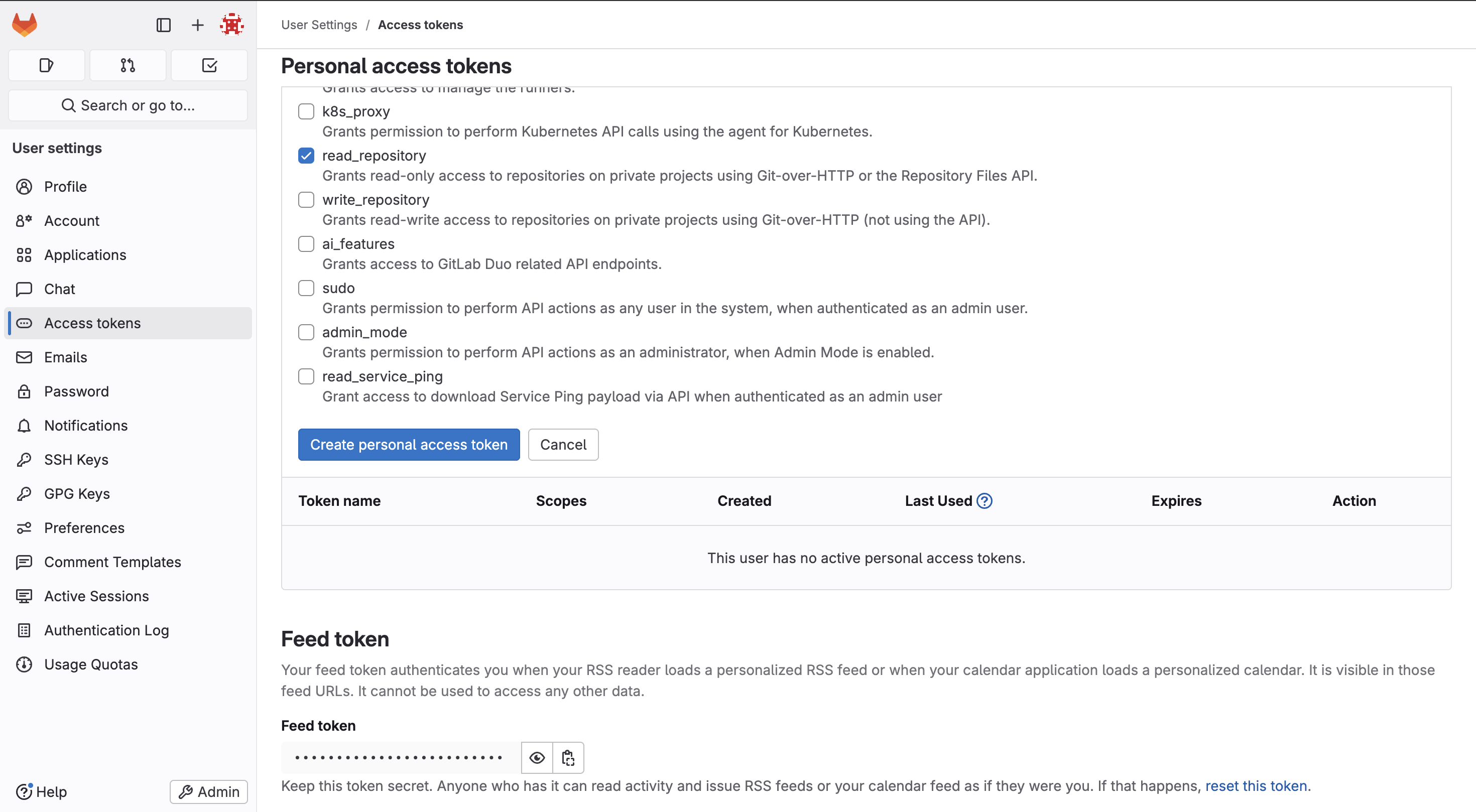
6. Select the following scopes: **api, read\_repository**
7. Click **Create Personal Access Token**
8. Save the token securely
 ## Step 3: Connect to MatterAI
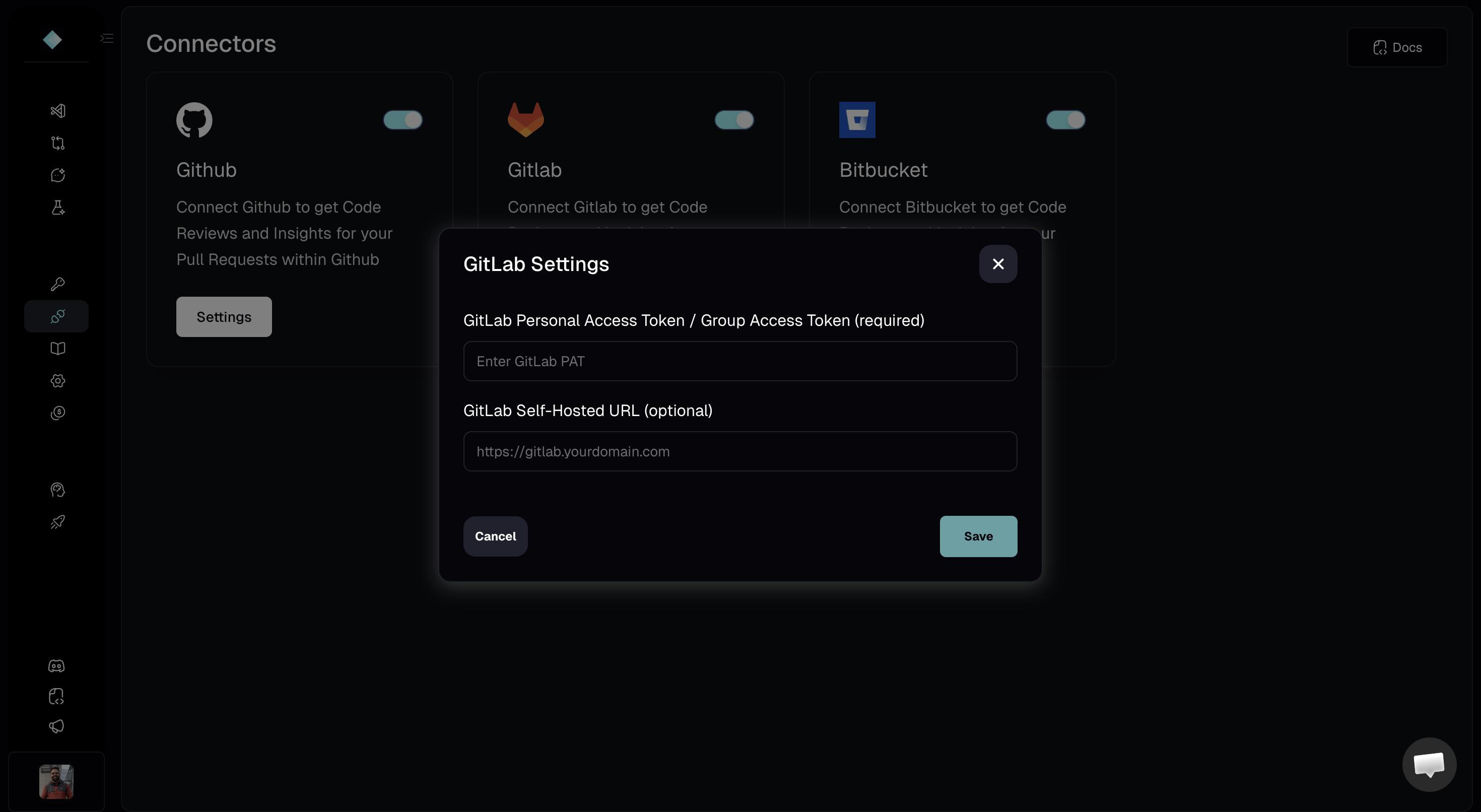
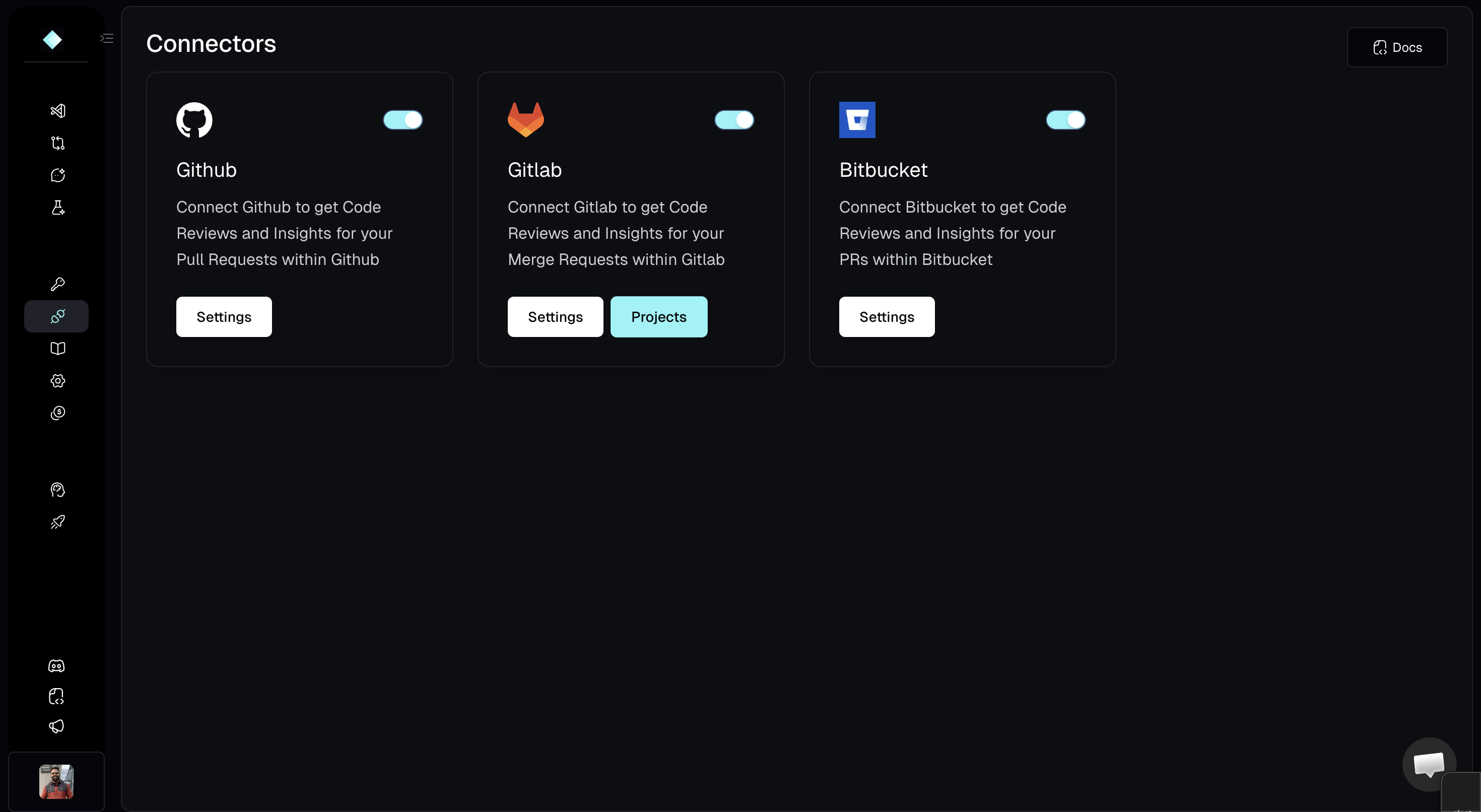
1. Navigate to **MatterAI** -> **Connectors** -> **GitLab** and click on **Connect**. Console URL: [https://app.matterai.so/connectors](https://app.matterai.so/connectors)
2. Enter your **Personal Access Token** in the provided field.
3. If you are using a self-hosted instance, enter your **Self-Hosted GitLab URL**.
4. Click **Save**.
## Step 3: Connect to MatterAI
1. Navigate to **MatterAI** -> **Connectors** -> **GitLab** and click on **Connect**. Console URL: [https://app.matterai.so/connectors](https://app.matterai.so/connectors)
2. Enter your **Personal Access Token** in the provided field.
3. If you are using a self-hosted instance, enter your **Self-Hosted GitLab URL**.
4. Click **Save**.
 ## Step 4: Manage Projects
1. Once connected, click on **Manage Projects** (or **Fetch Groups**).
2. MatterAI will retrieve all available GitLab Projects/Groups associated with your token.
## Step 4: Manage Projects
1. Once connected, click on **Manage Projects** (or **Fetch Groups**).
2. MatterAI will retrieve all available GitLab Projects/Groups associated with your token.
 ## Step 5: Enable Projects
1. Locate the project or group you wish to enable.
2. Toggle the switch to enable it. You can enable specific projects or an entire group.
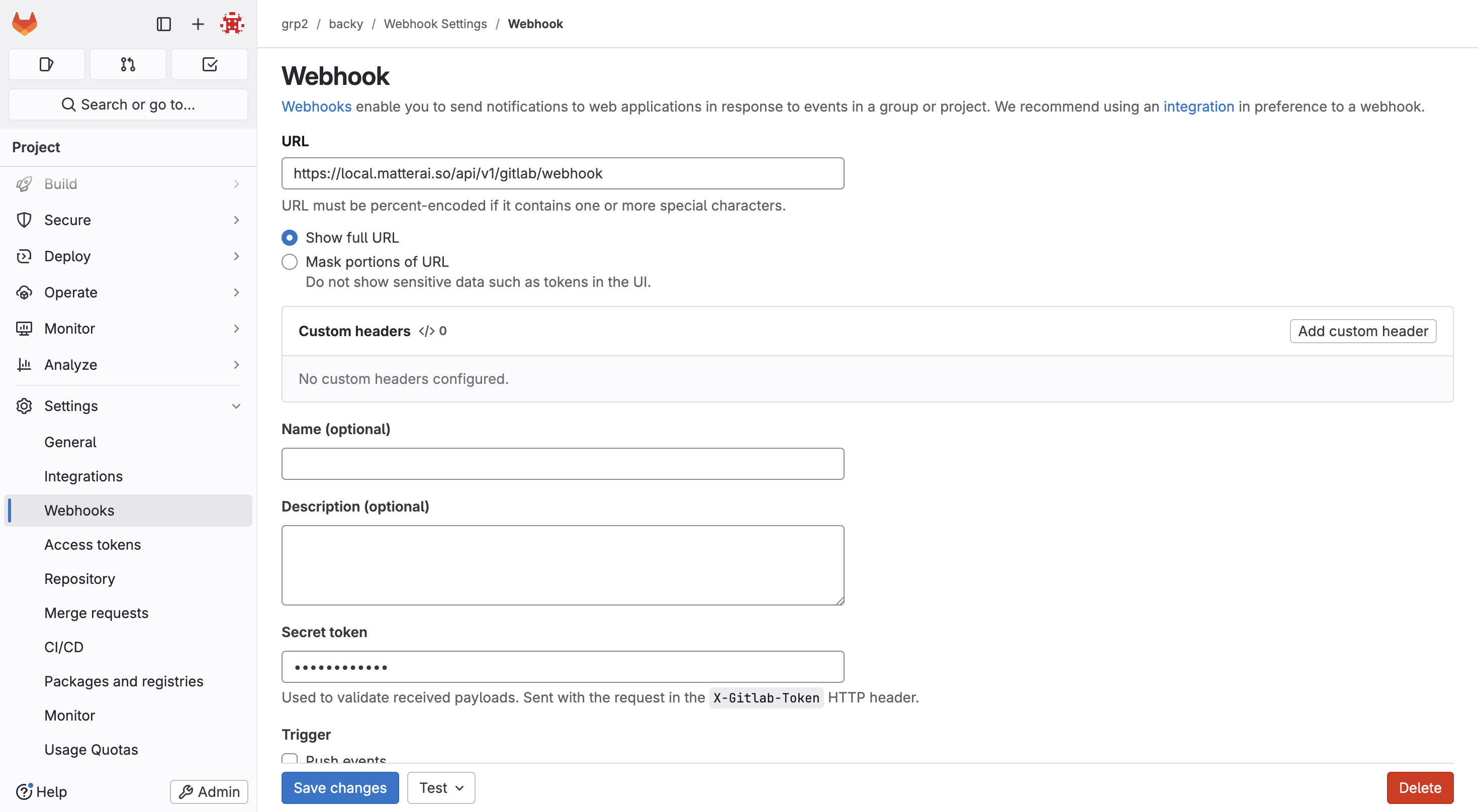
3. MatterAI will automatically set up the required webhooks for all enabled projects.
## Step 5: Enable Projects
1. Locate the project or group you wish to enable.
2. Toggle the switch to enable it. You can enable specific projects or an entire group.
3. MatterAI will automatically set up the required webhooks for all enabled projects.
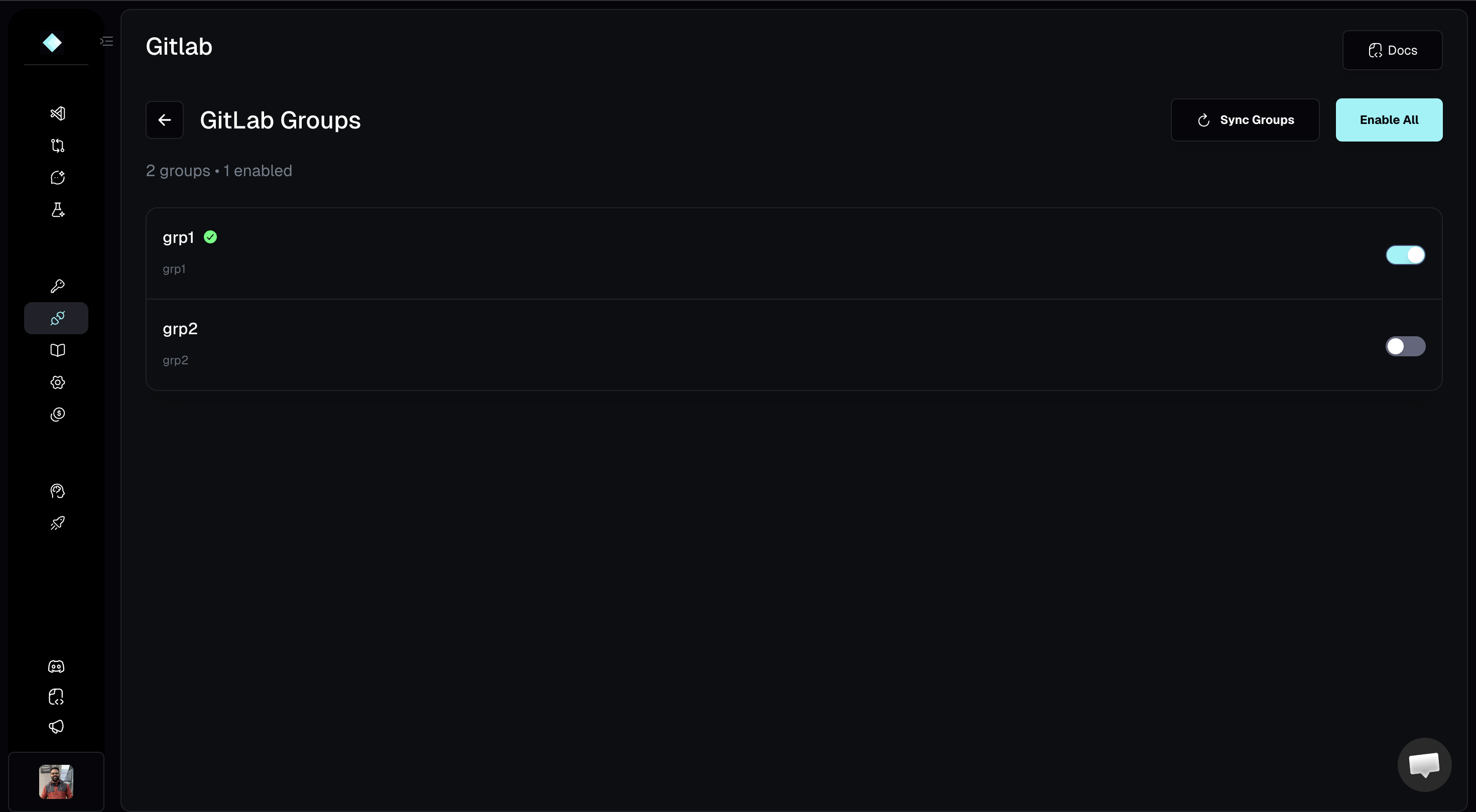 This automated flow works on all GitLab tiers (Free, Premium, Ultimate) and
fully supports self-hosted GitLab instances. Use the toggle to easily manage
MatterAI integration for your groups.
## Done, Your Webhooks are auto-configured!
This automated flow works on all GitLab tiers (Free, Premium, Ultimate) and
fully supports self-hosted GitLab instances. Use the toggle to easily manage
MatterAI integration for your groups.
## Done, Your Webhooks are auto-configured!
 ## GitLab Code Reviews
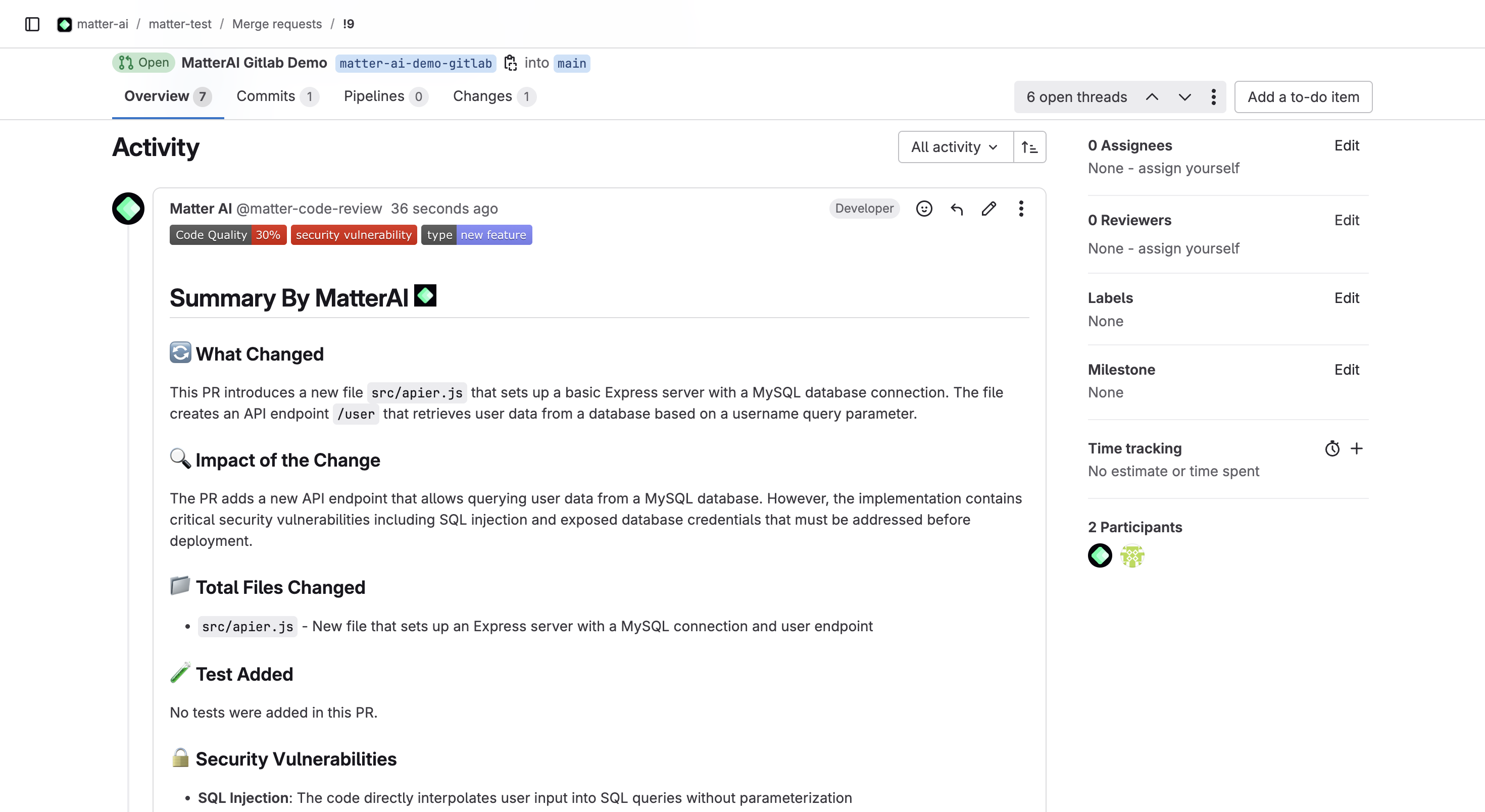
### AI Merge Request Summary
Get PR summaries in your GitLab merge requests, always upto date on all the commits.
## GitLab Code Reviews
### AI Merge Request Summary
Get PR summaries in your GitLab merge requests, always upto date on all the commits.
 ### AI Merge Review Threads
Get PR summaries in your GitLab merge requests with issues, fix and code fix suggestion that you can apply with 1-click.
### AI Merge Review Threads
Get PR summaries in your GitLab merge requests with issues, fix and code fix suggestion that you can apply with 1-click.