MatterAI Jira Integration
Connect your Atlassian Jira account to MatterAI to seamlessly search, fetch tasks, and interact with all your Jira content directly within MatterAI. Follow these steps to integrate MatterAI with your Jira Workspace:Step 1: Create a Service Account
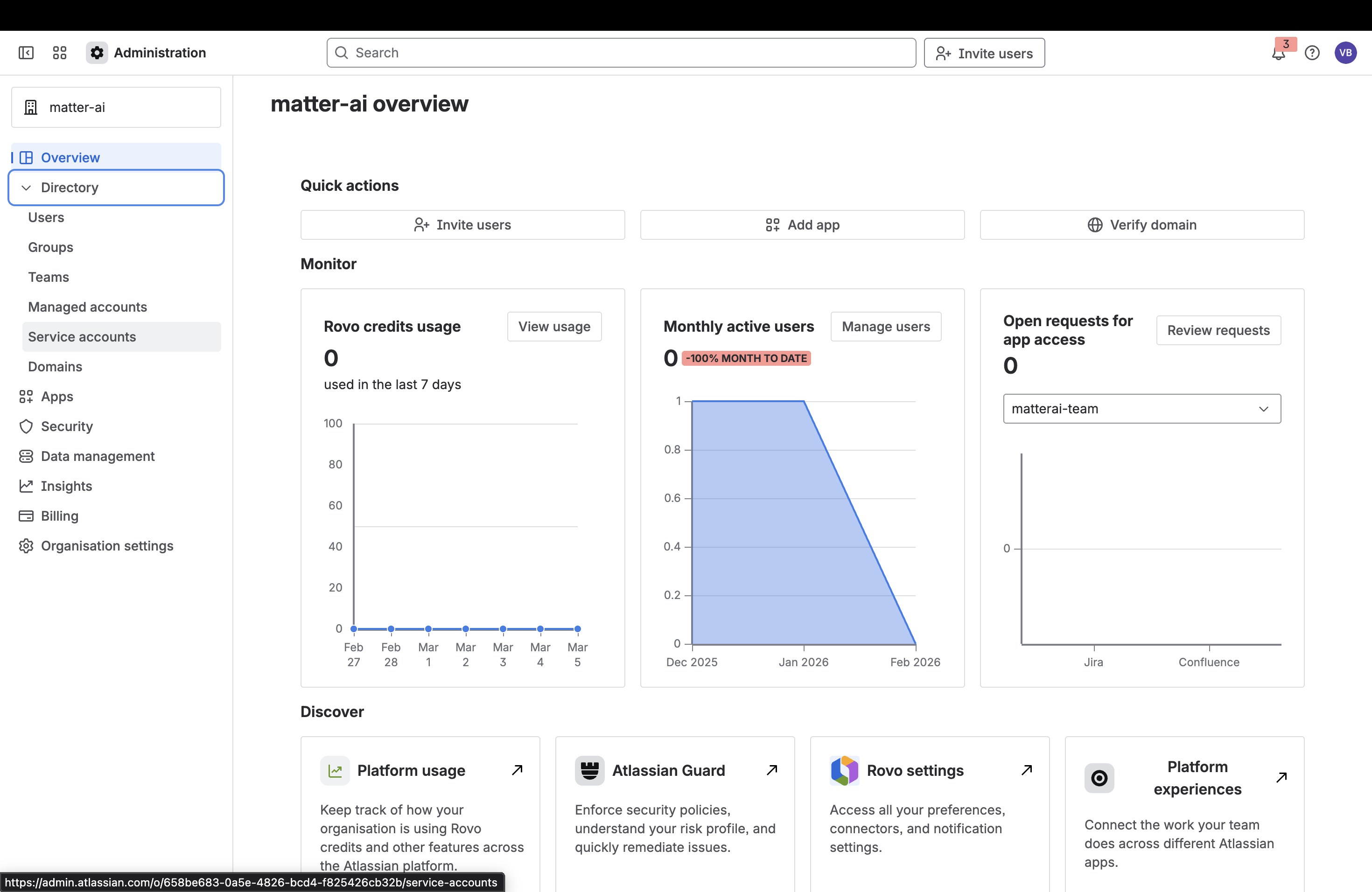
- Go to your Atlassian Administration dashboard (e.g.,
admin.atlassian.com). - Navigate to Directory > Service accounts from the left sidebar.
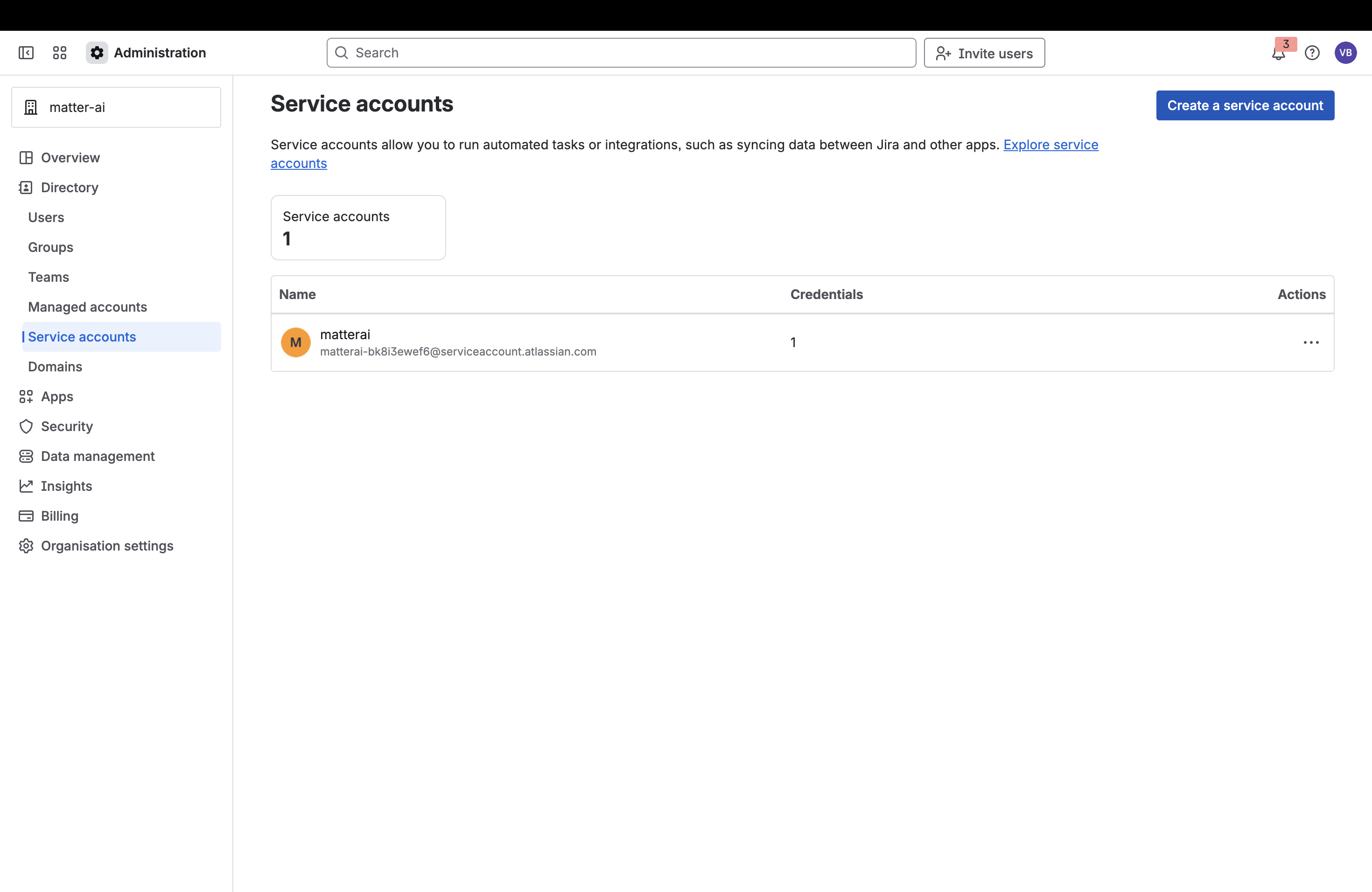
- Click the Create a service account button in the top right corner.
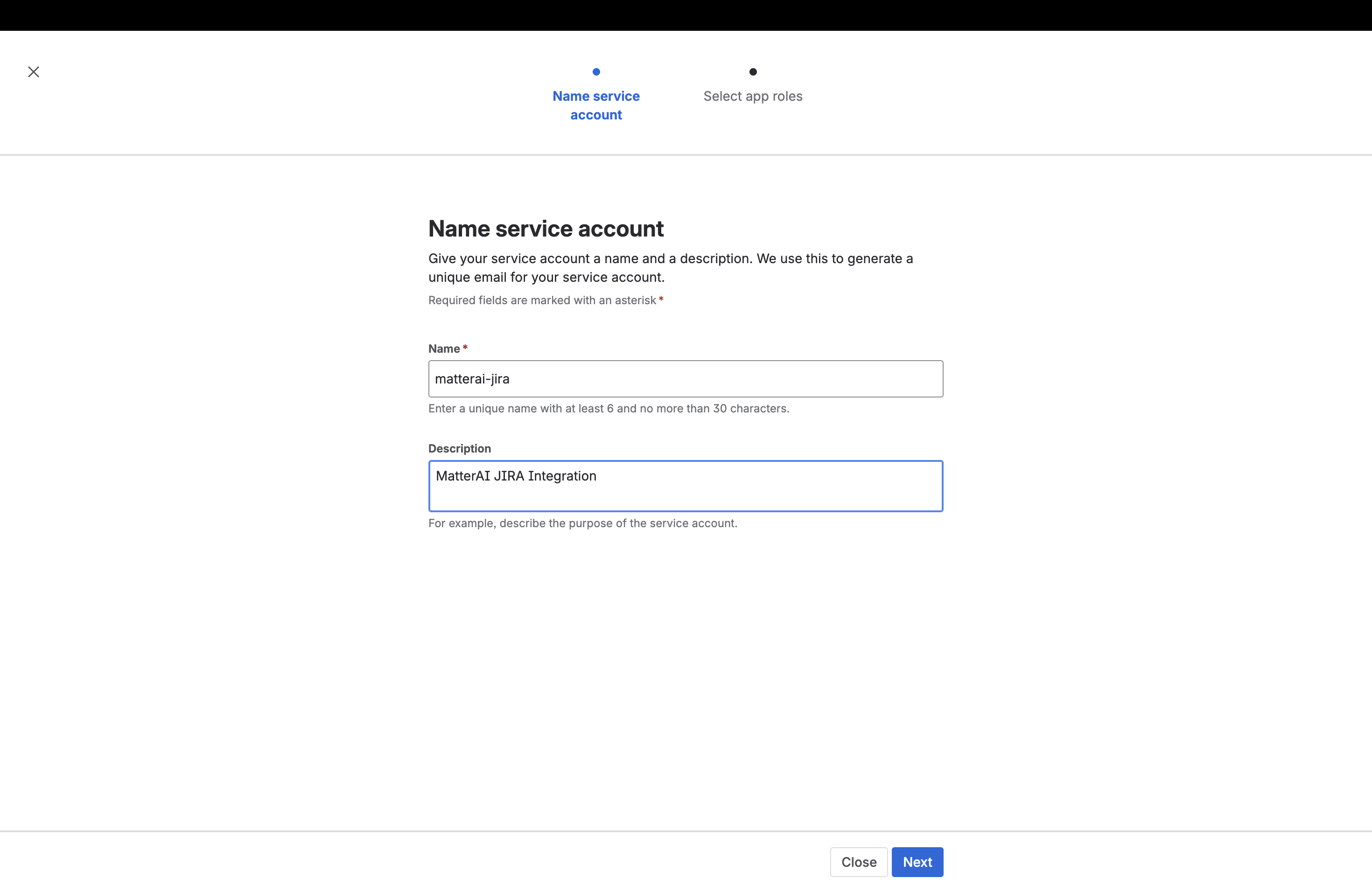
- Provide a name (e.g.,
matterai-jira) and description for your service account, then click Next.
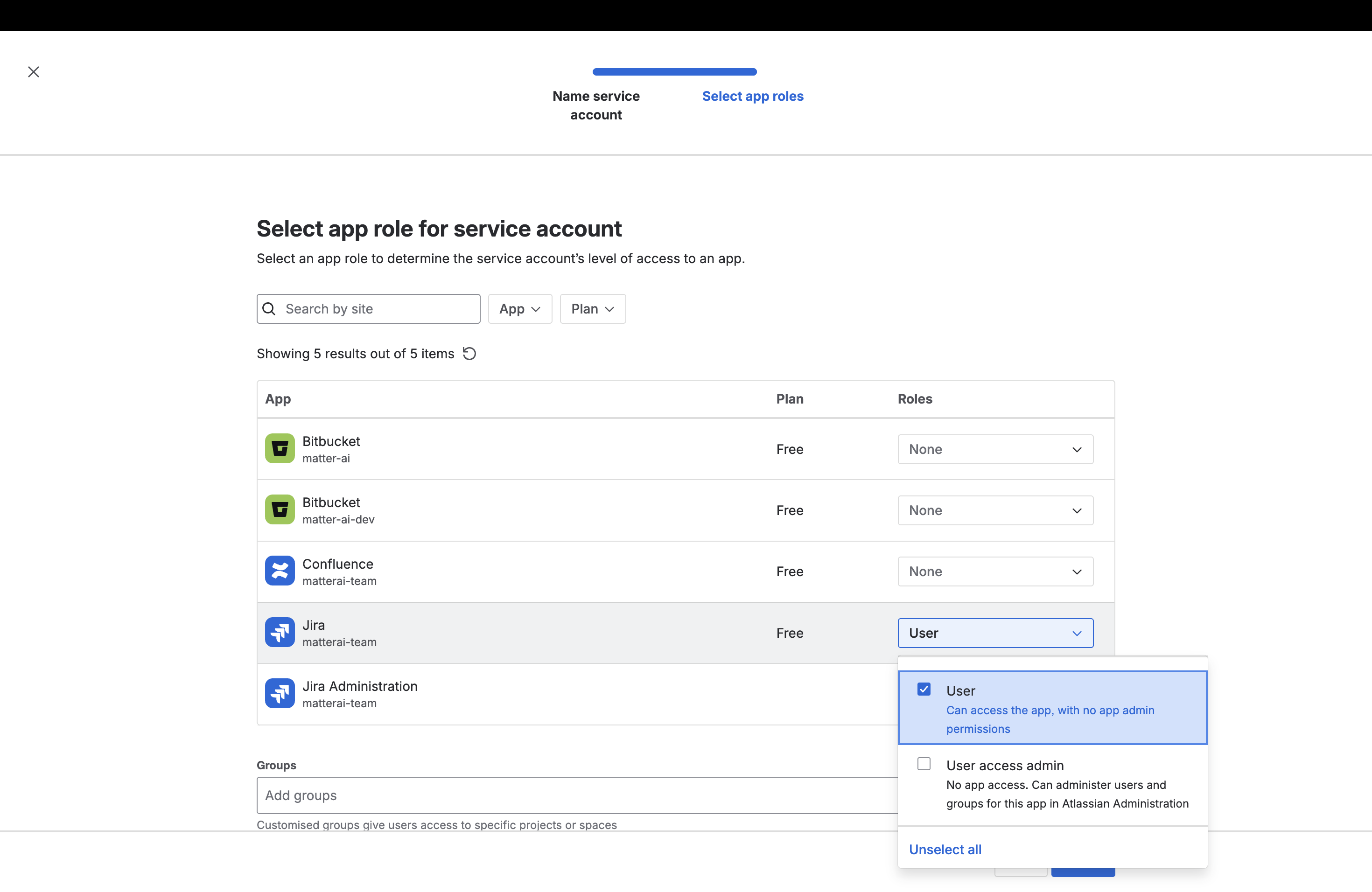
- In the Select app roles step, find Jira from the list of apps and assign it the User role.
Step 2: Generate an API Token
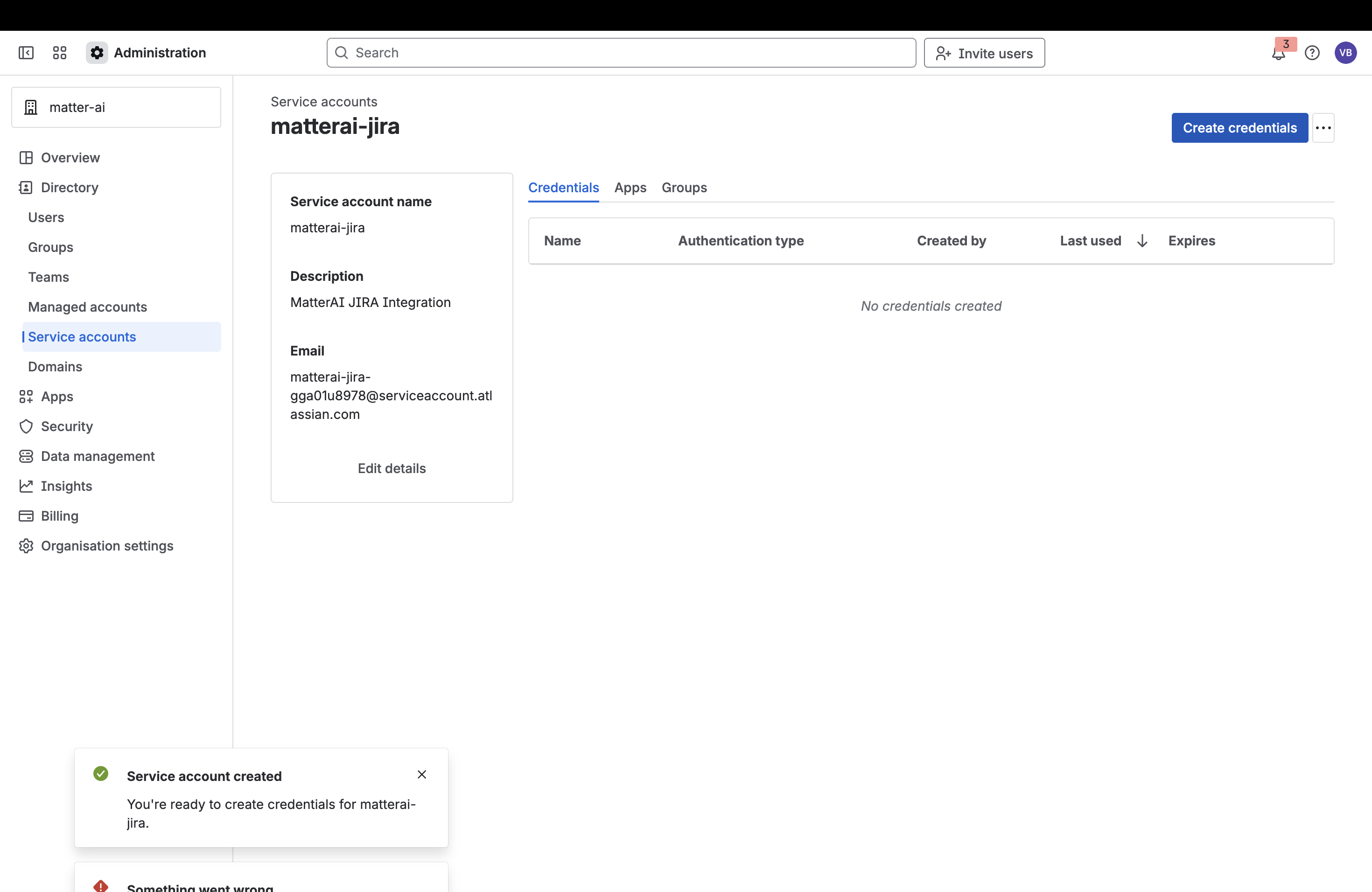
- After the service account is successfully created, click on the Create credentials button on the service account page.
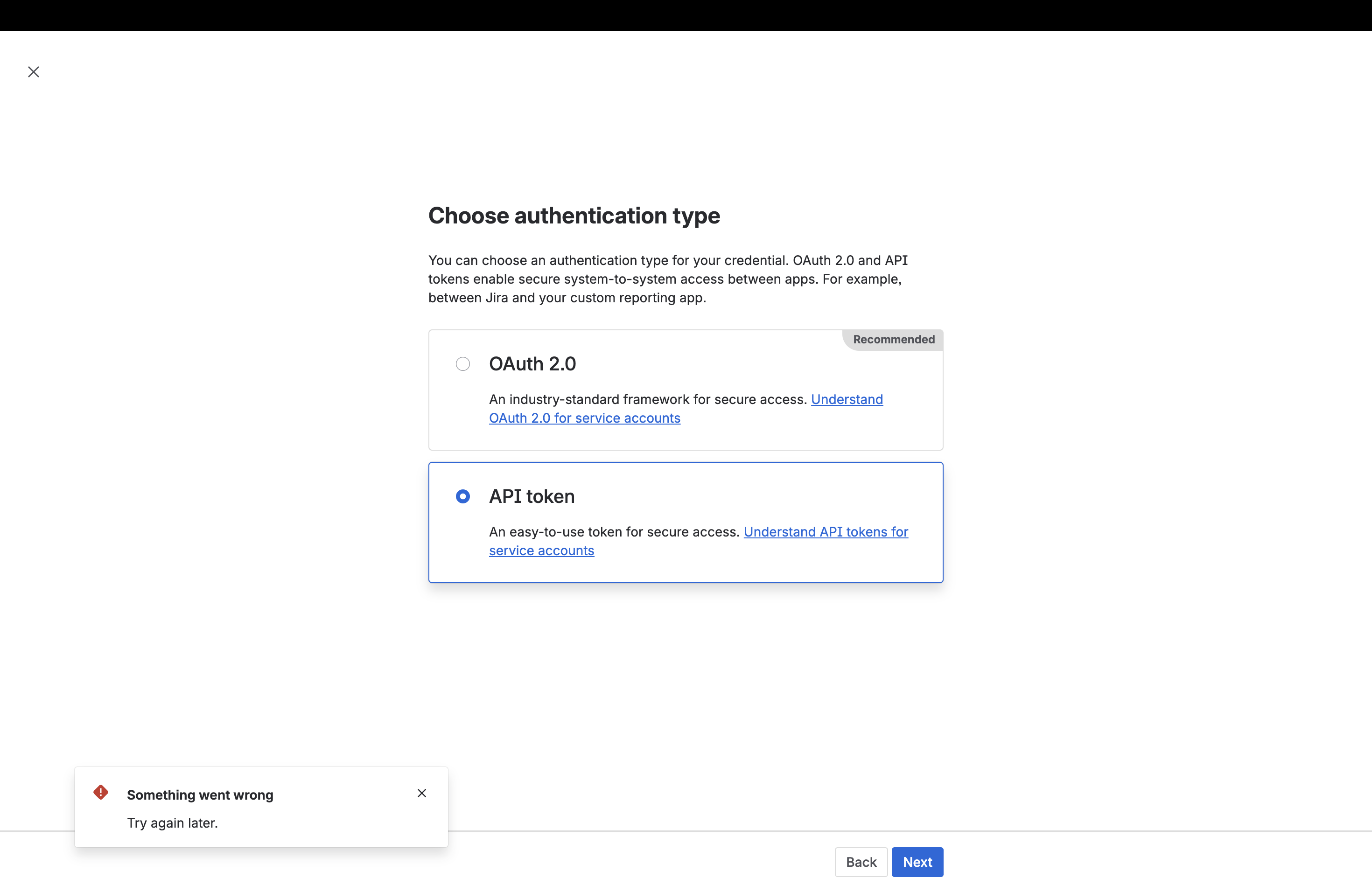
- Choose API token as your authentication type and click Next.
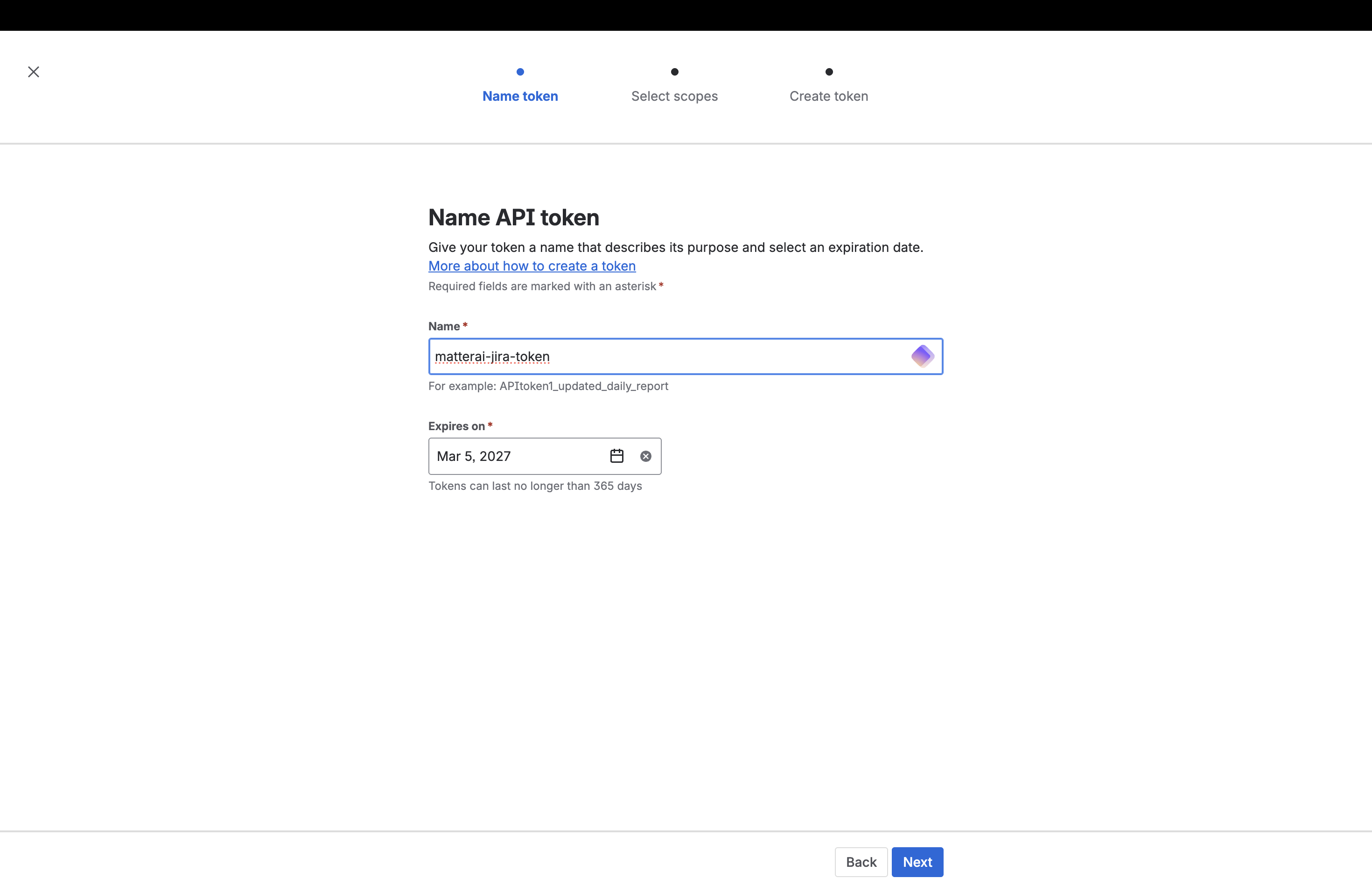
- Give your token a name (such as
matterai-jira-token), select an expiration date, and click Next.
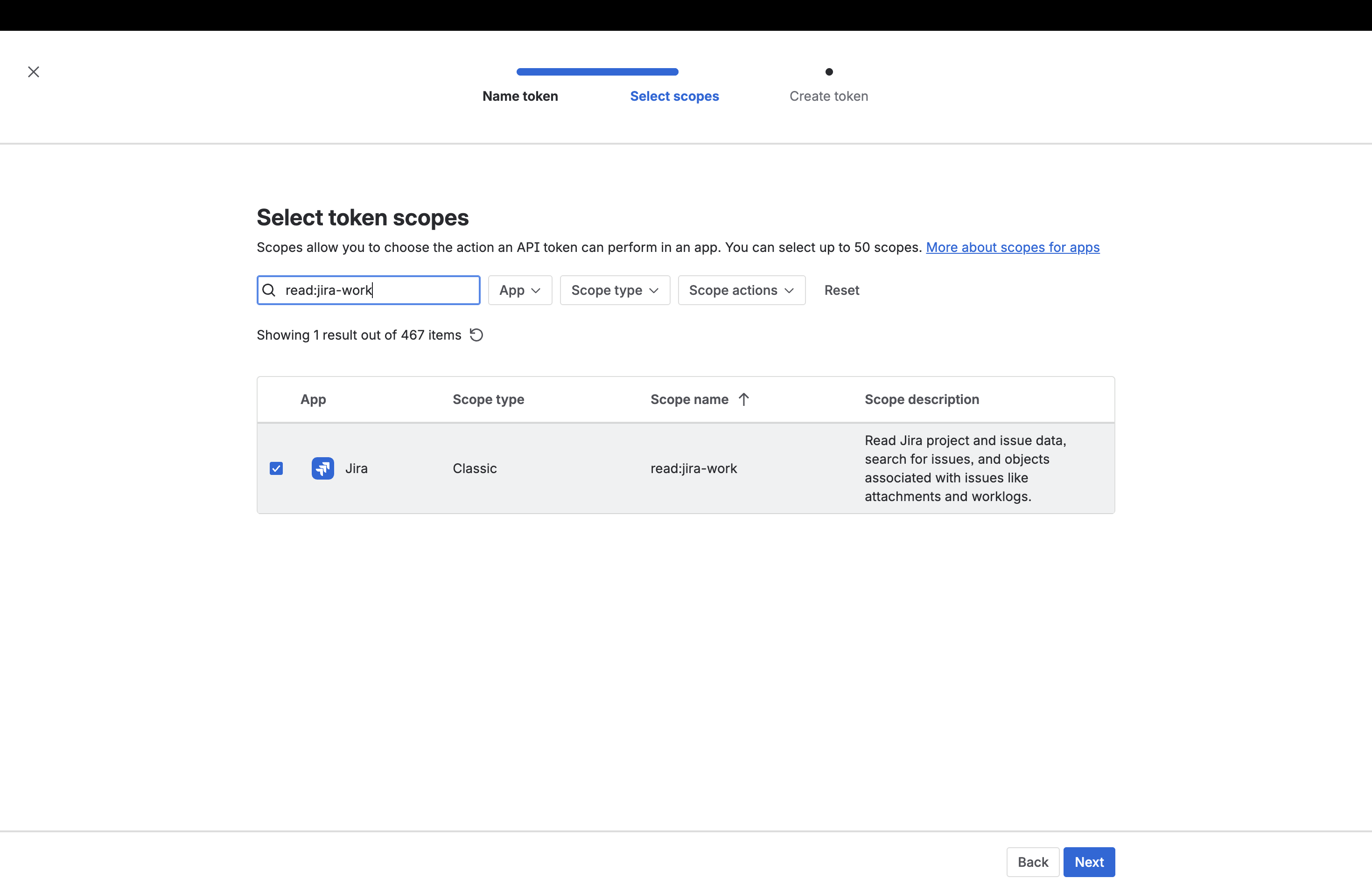
- In the Select token scopes screen, search for and select the
read:jira-workscope. This allows MatterAI to fetch your Jira issues and project data. Then, click Next.
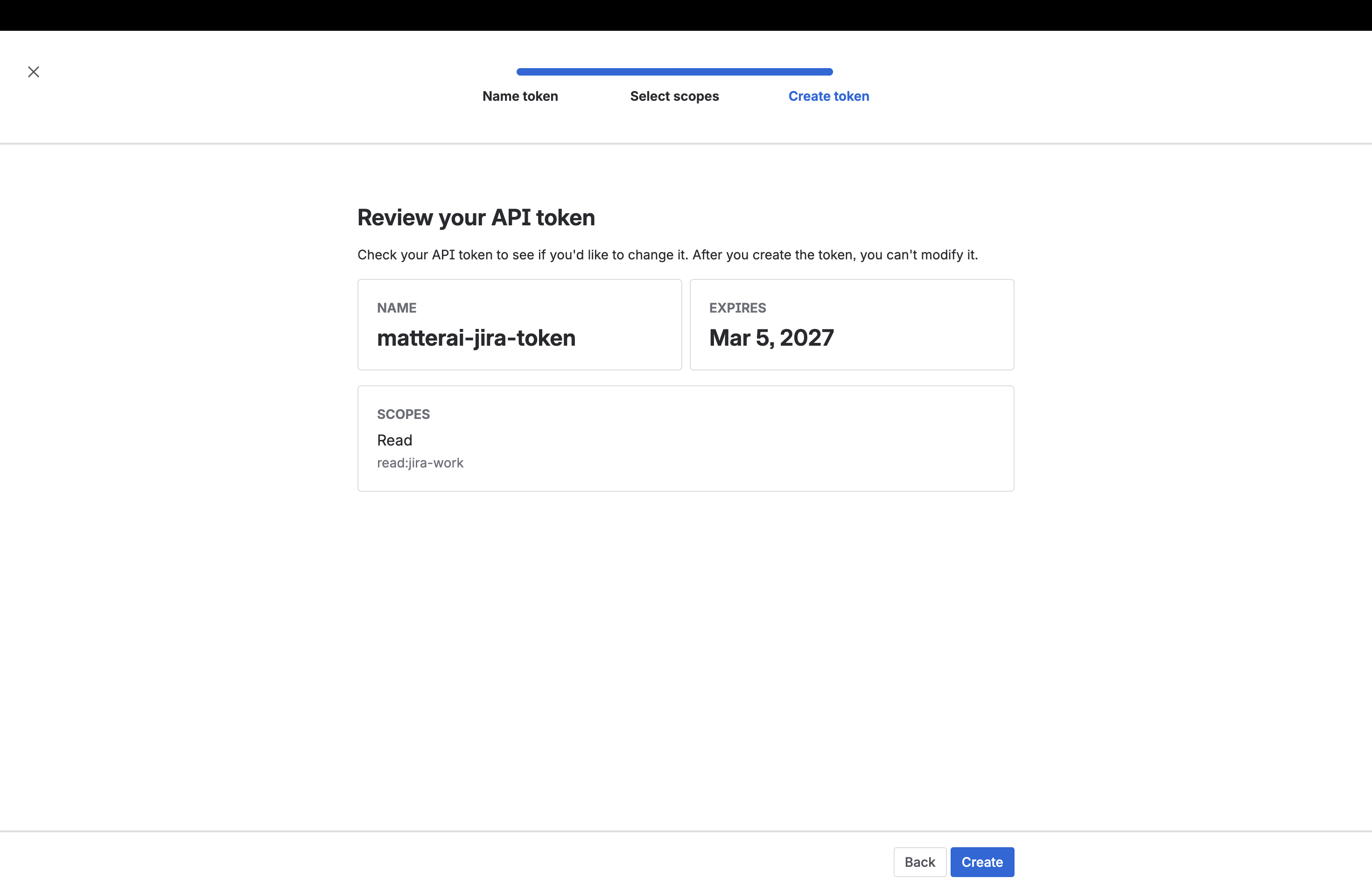
- Review your API token details. Make sure the configuration is correct, then click Create.
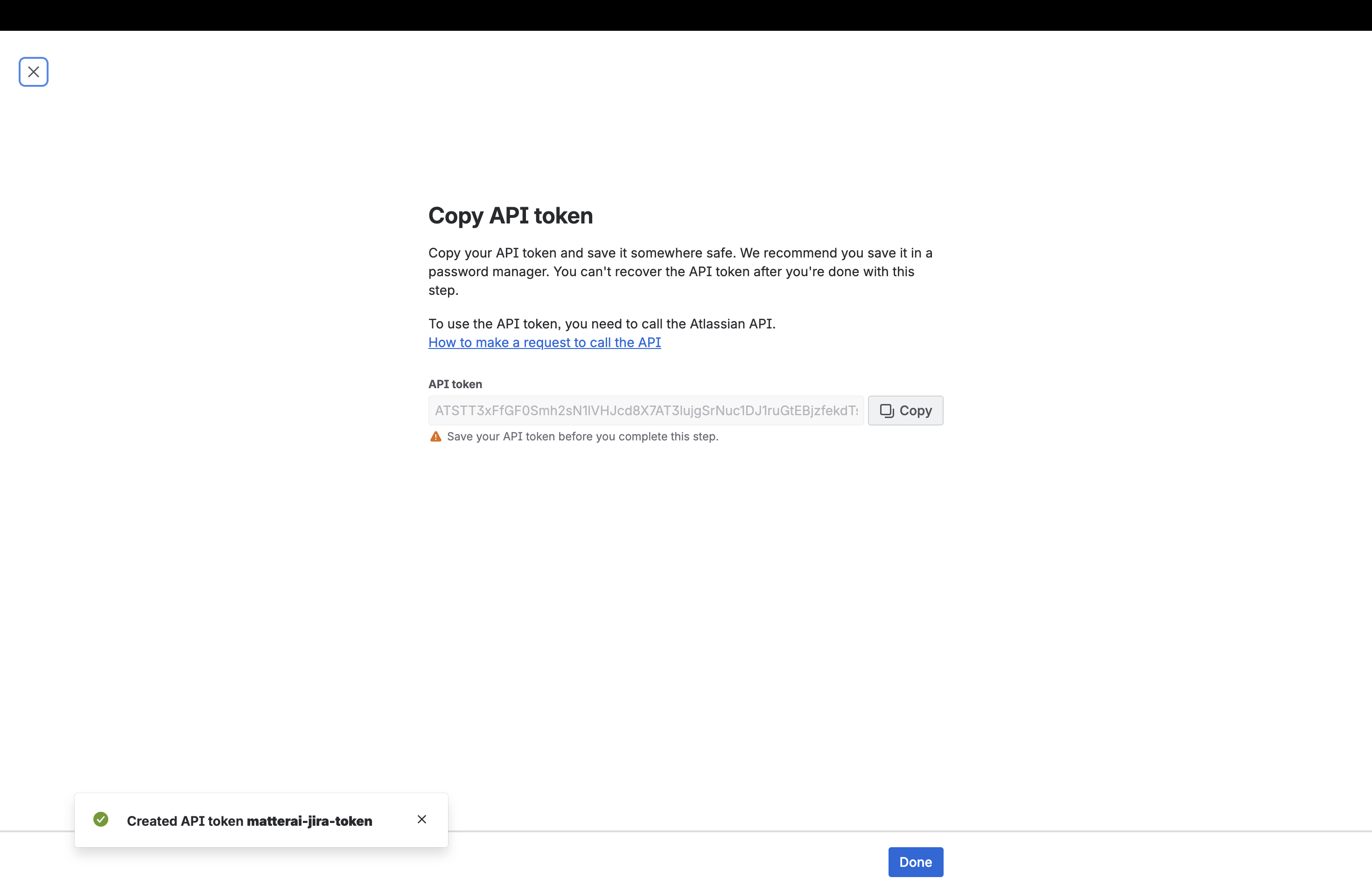
- Copy the generated API token. Save it somewhere safe, as you won’t be able to retrieve it again. Click Done.
Step 3: Connect to MatterAI
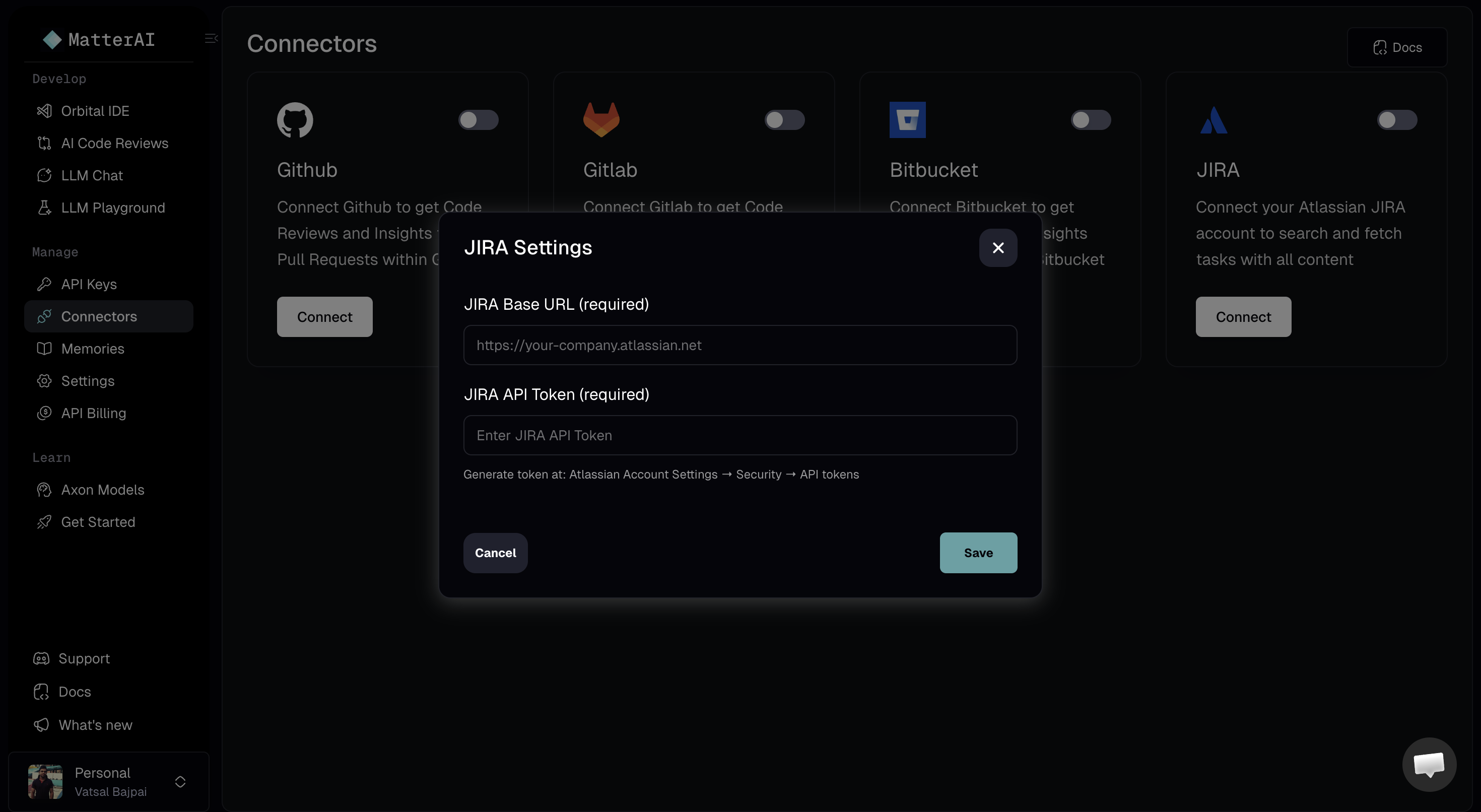
- Visit the MatterAI web app https://app.matterai.so/connectors and navigate to Connectors on the left menu.
- Under the JIRA connector card, click the Connect button.
- In the JIRA Settings modal, enter your JIRA Base URL (e.g.,
https://your-company.atlassian.net). - Paste the JIRA API Token you copied during the previous step into the token field.
- Click Save to complete the integration.